
MS OFFICE 2024 LTSC PROFESSIONAL PLUS
Follow these simple instructions for a smooth installation and activation on Windows.
Before You Begin
You must uninstall all old office versions using the official removal tool. This ensures a clean installation without conflicts.
Uninstall Previous Office Versions
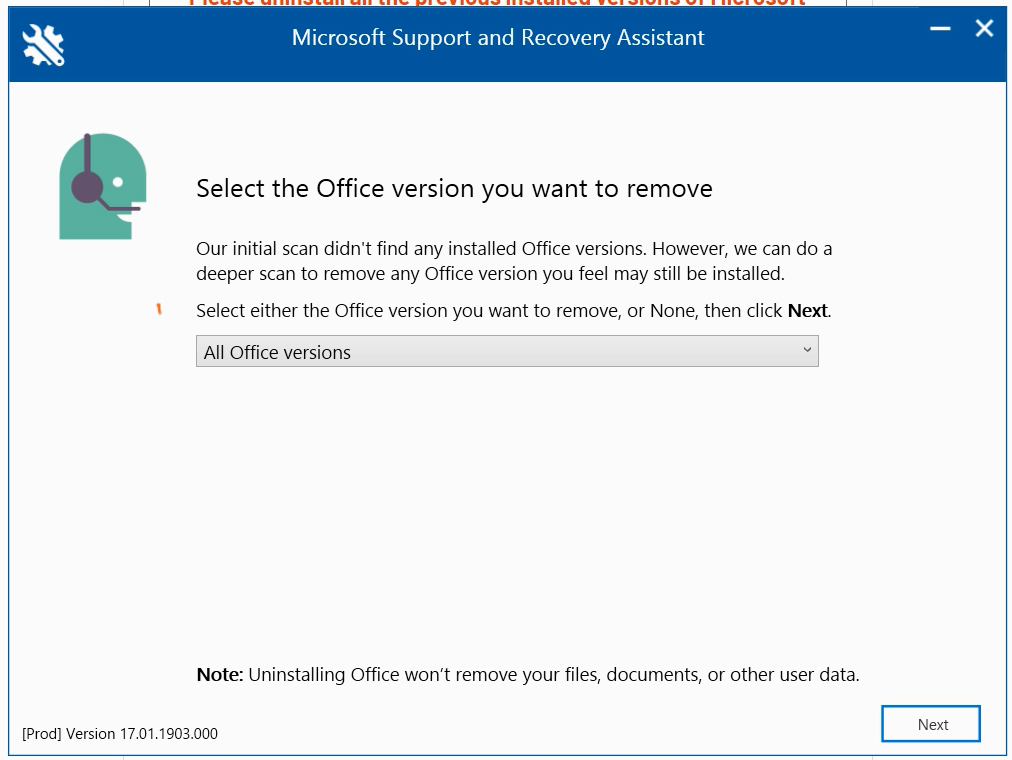
Download and run the official Microsoft Office removal tool
Run the Removal Tool
Select "All Office Version" and wait 30-45 minutes for completion

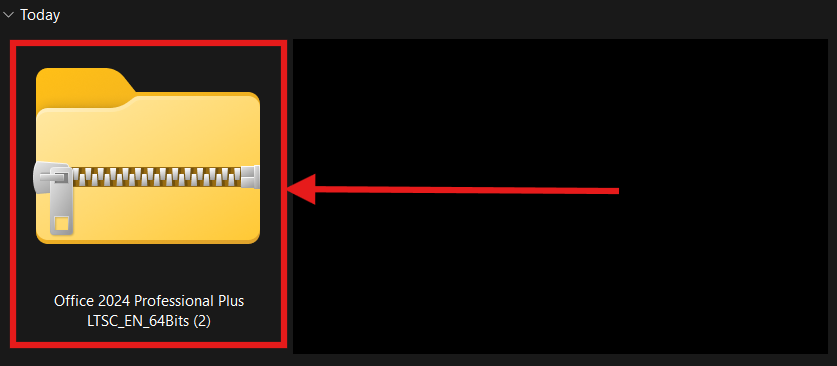
Open the Downloaded ZIP File
Double-click on the "Office 2024 Professional Plus LTSC_EN_64Bits" zip file
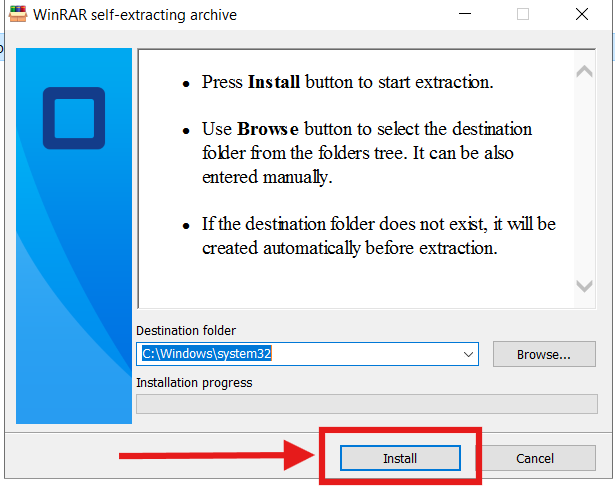
Run the Application
Double-click on the application file to run it

Click Next on Self-Extracting ZIP
Click "Next" on the self-extracting dialog, then "Yes" when prompted
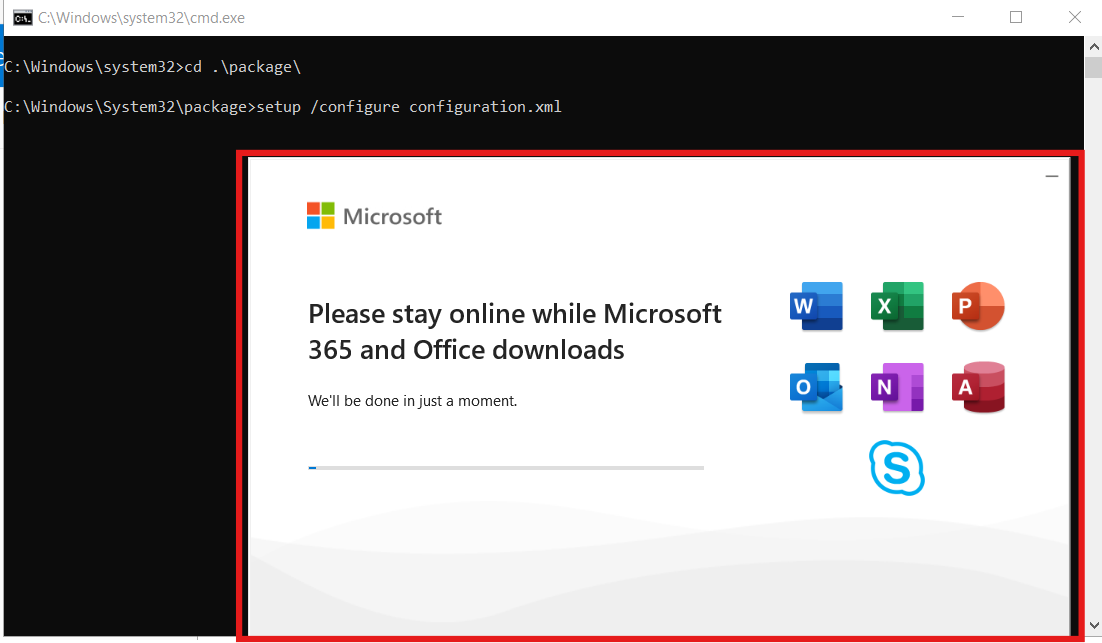
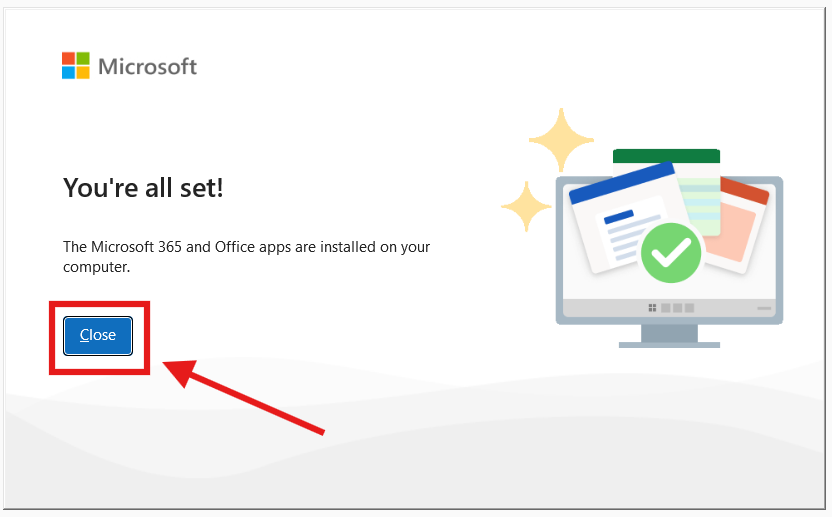
Wait for Installation
Stay online while it downloads and installs (approx. 15-30 mins)
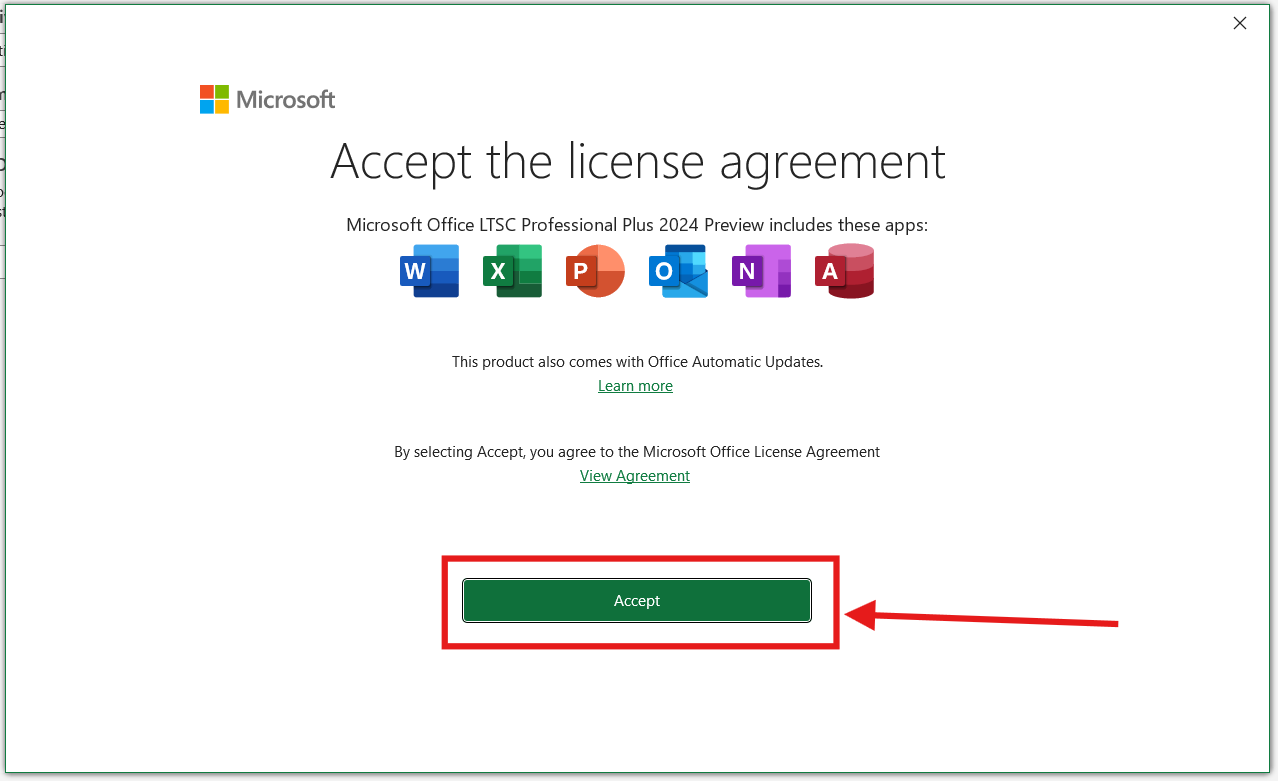
Open Office Application
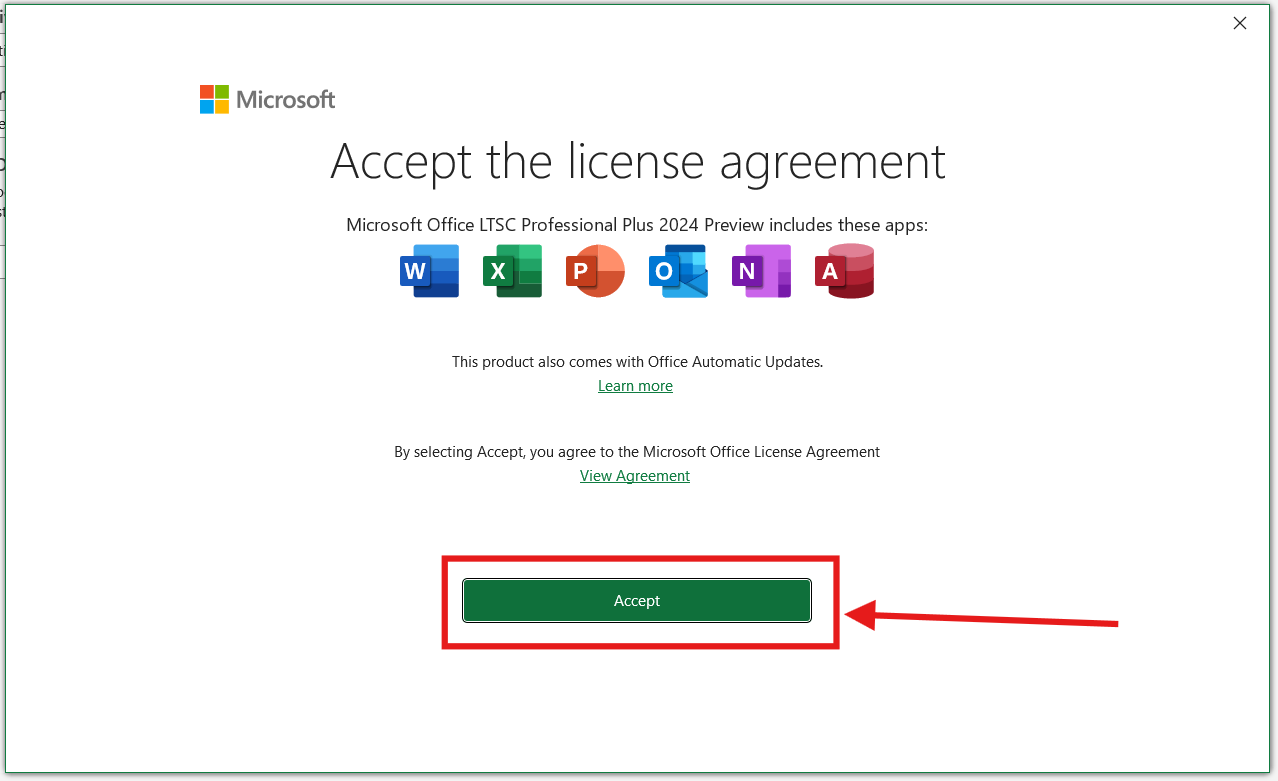
Launch Word or Excel and accept the License Agreement
Navigate to Account Settings
Click File Menu → Accounts (bottom left corner)
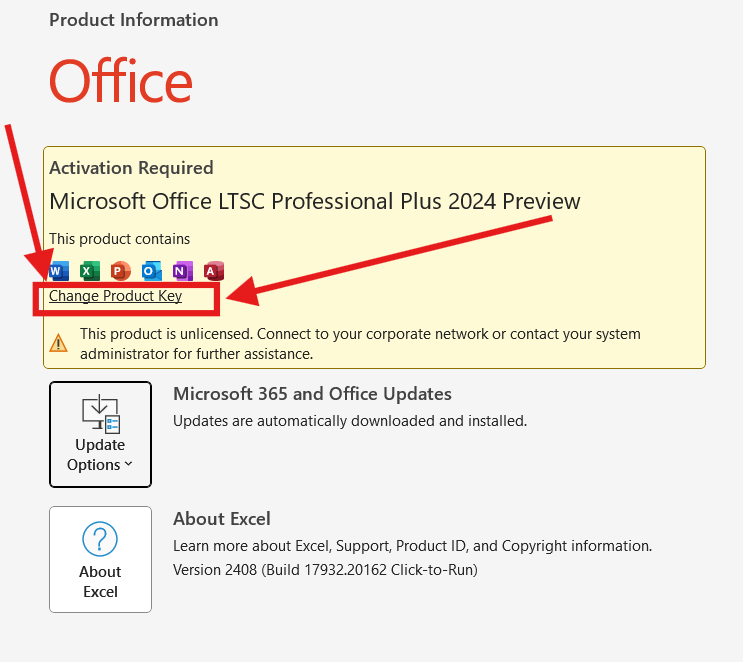
Enter Your License Key
Click "Change Product Key" and enter your 25-digit license key
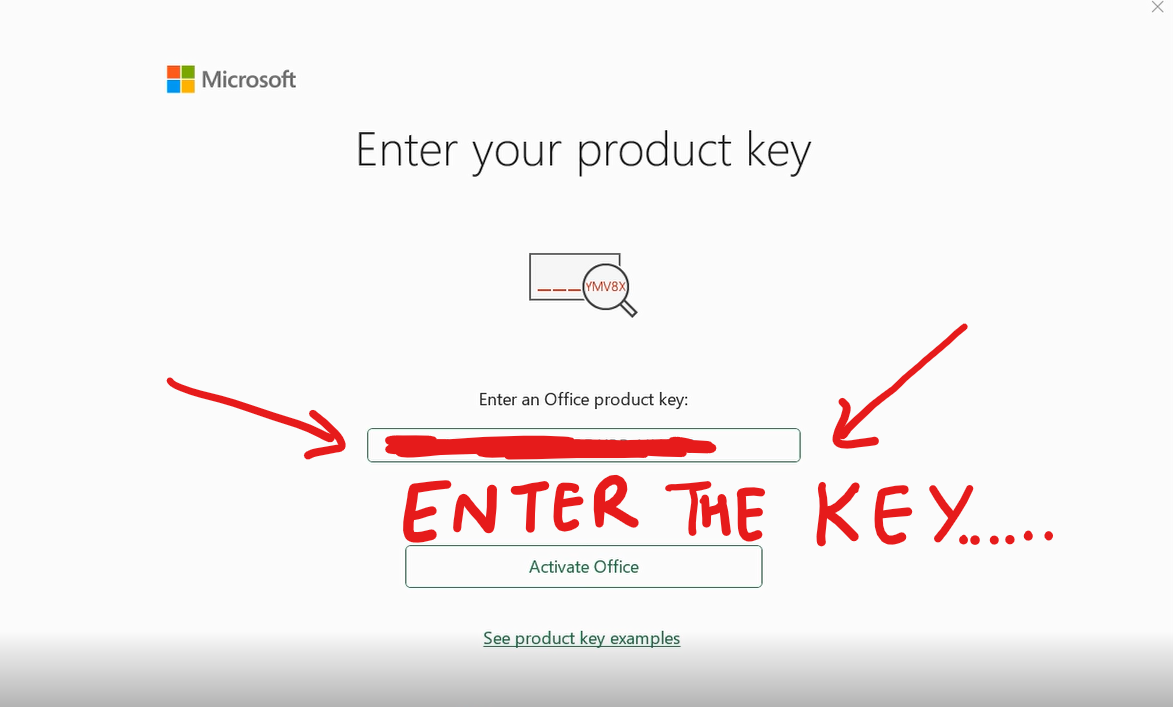
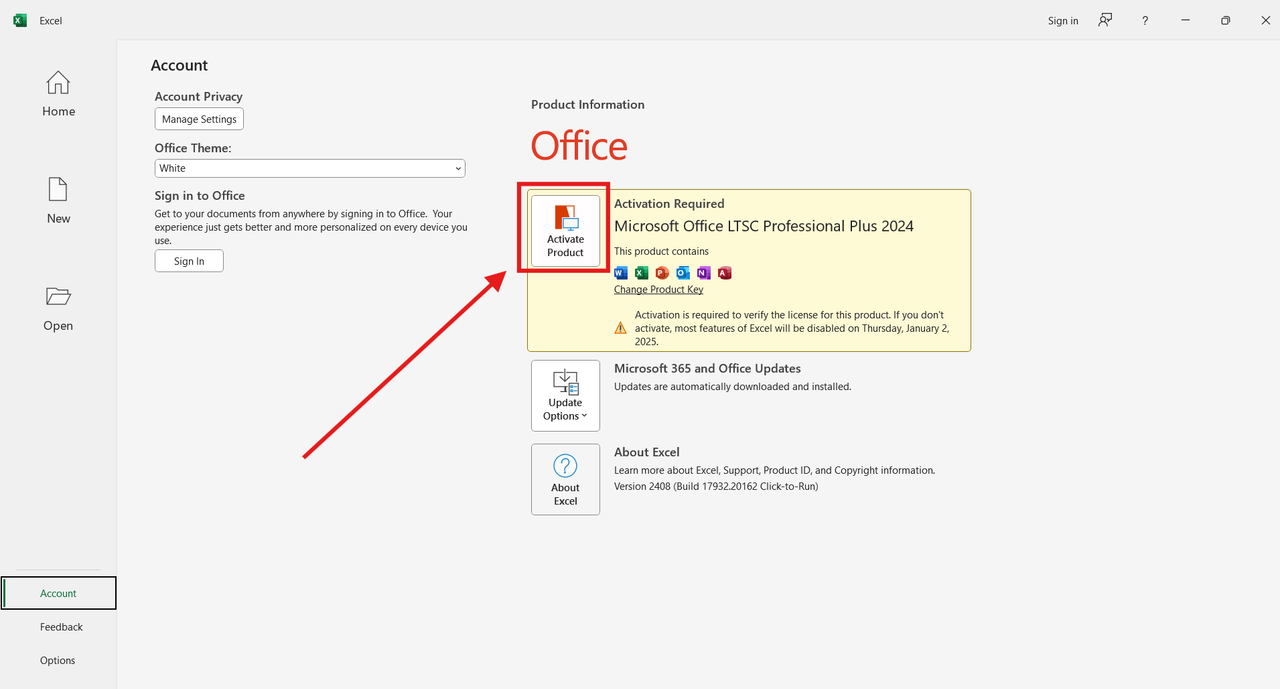
Click "Activate Office"
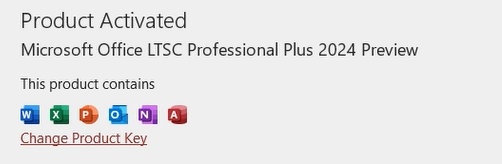
Your Office 2024 LTSC will be activated for lifetime!
Troubleshooting: Phone Activation
If you encounter an activation error, follow these steps to activate via telephone.
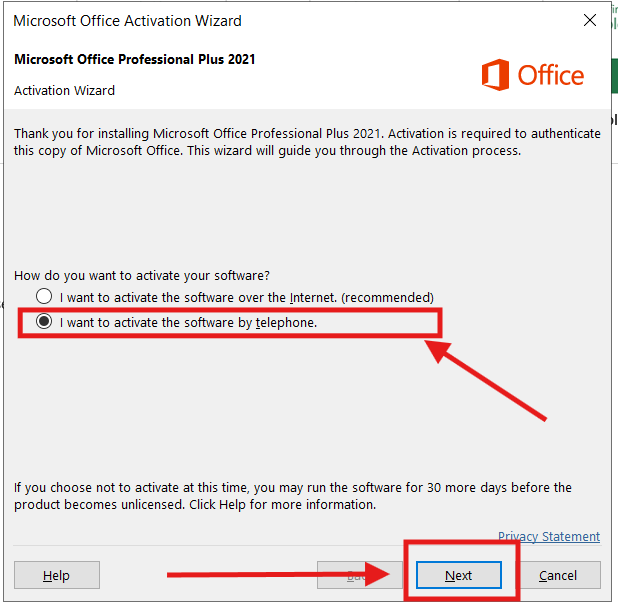
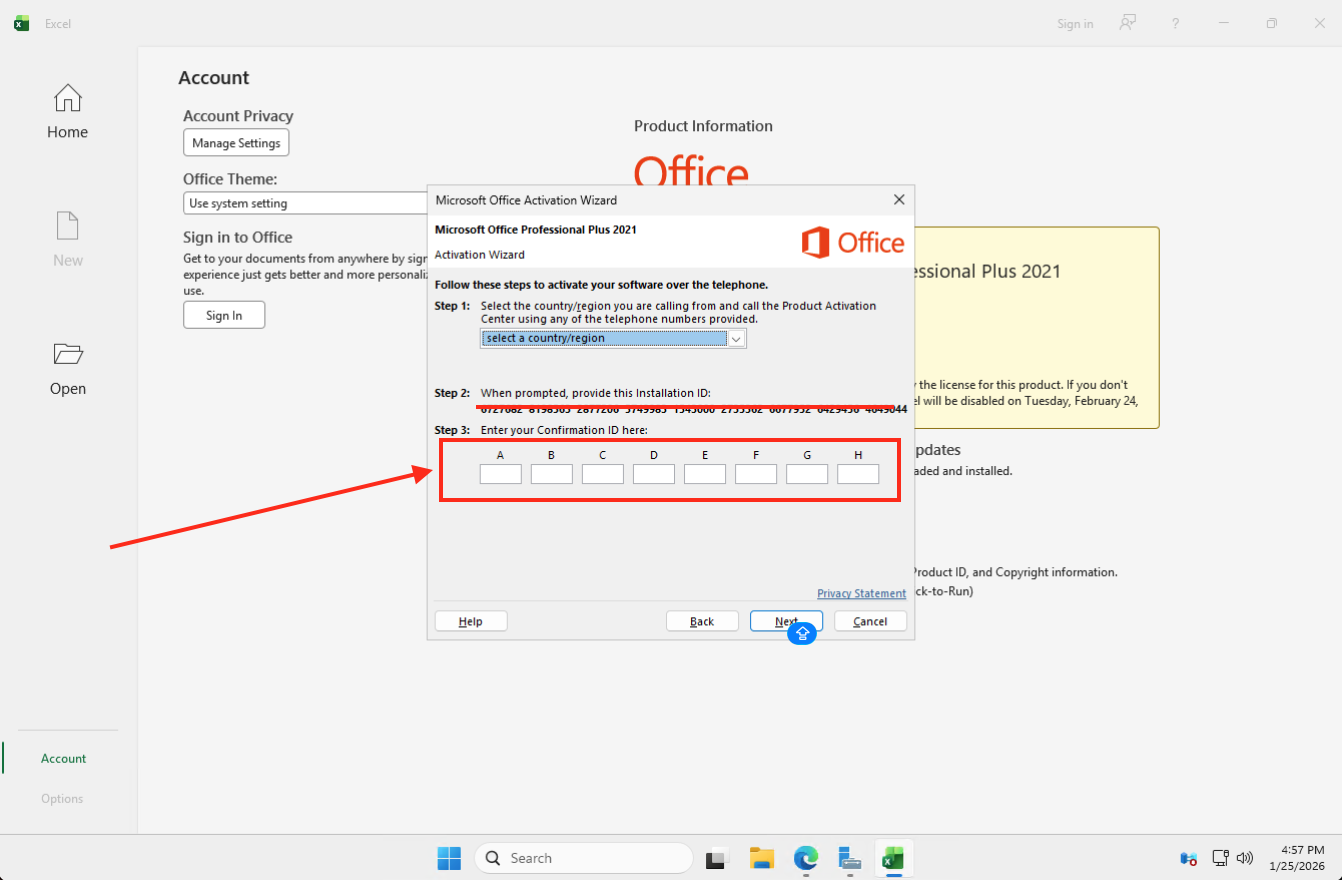
If the Activation Wizard appears:
Select: "I want to activate the software by telephone" and click Next
- Enter your 63-digit Installation ID on the website
- Click ACTIVATE and wait 2-3 minutes
- A Confirmation ID will be generated
Enter the Confirmation ID in the Office app (blocks A to H) to finish activation
Your Office 2024 is now activated for lifetime!
Register for FREE Warranty
Get lifetime technical support & remote desktop assistance via AnyDesk