
MS OFFICE 365 PRO PLUS
Follow these simple instructions for a smooth activation. Works on Windows, Mac, iOS, and Android.
Before You Begin
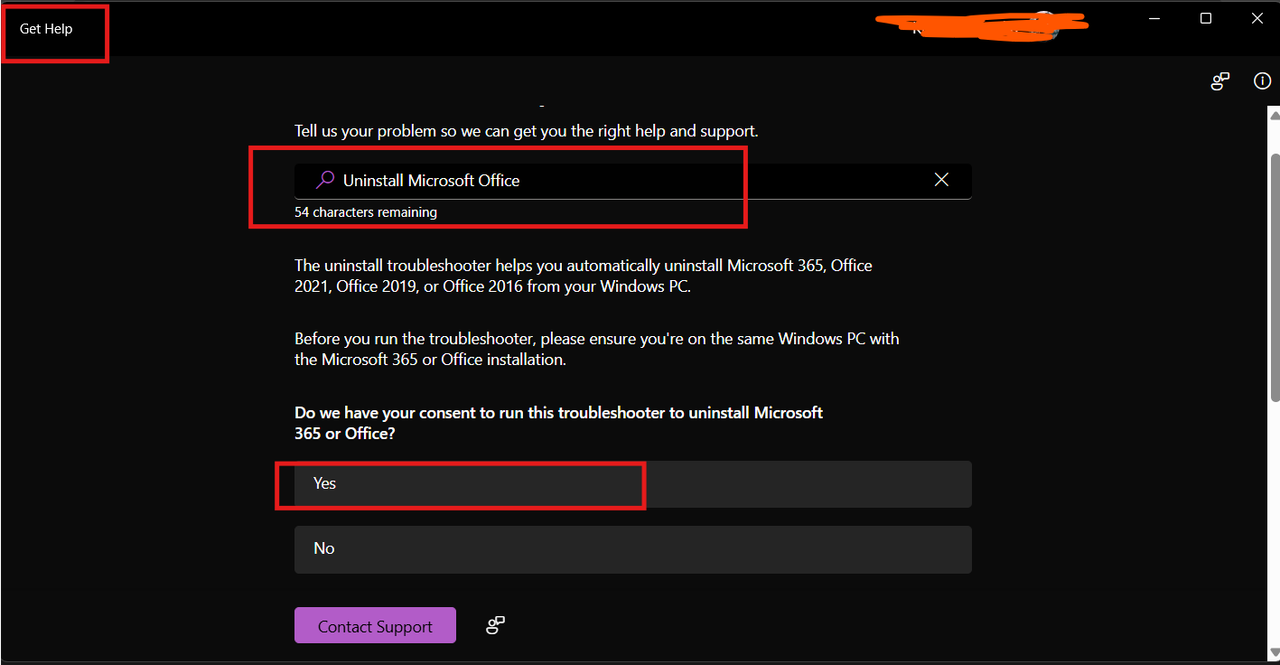
You must uninstall all old office versions using the official removal tool. This ensures a clean installation without conflicts.
Uninstall Previous Office Versions
Download and run the official Microsoft Office removal tool
Run the Removal Tool
Select "All Office Version" and wait 30-45 minutes for completion
Note
If you don't have any Office 365 programs pre-installed, follow all steps below. If you already have Office 365 installed, skip to the bottom section "If Office 365 is Pre-installed".
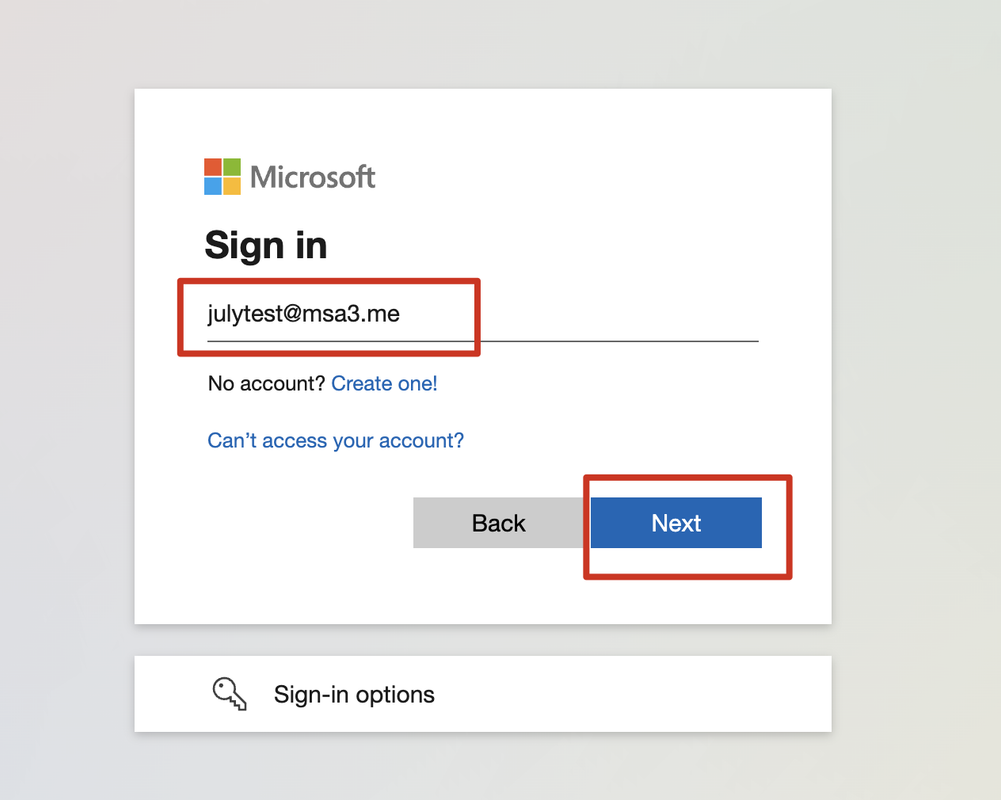
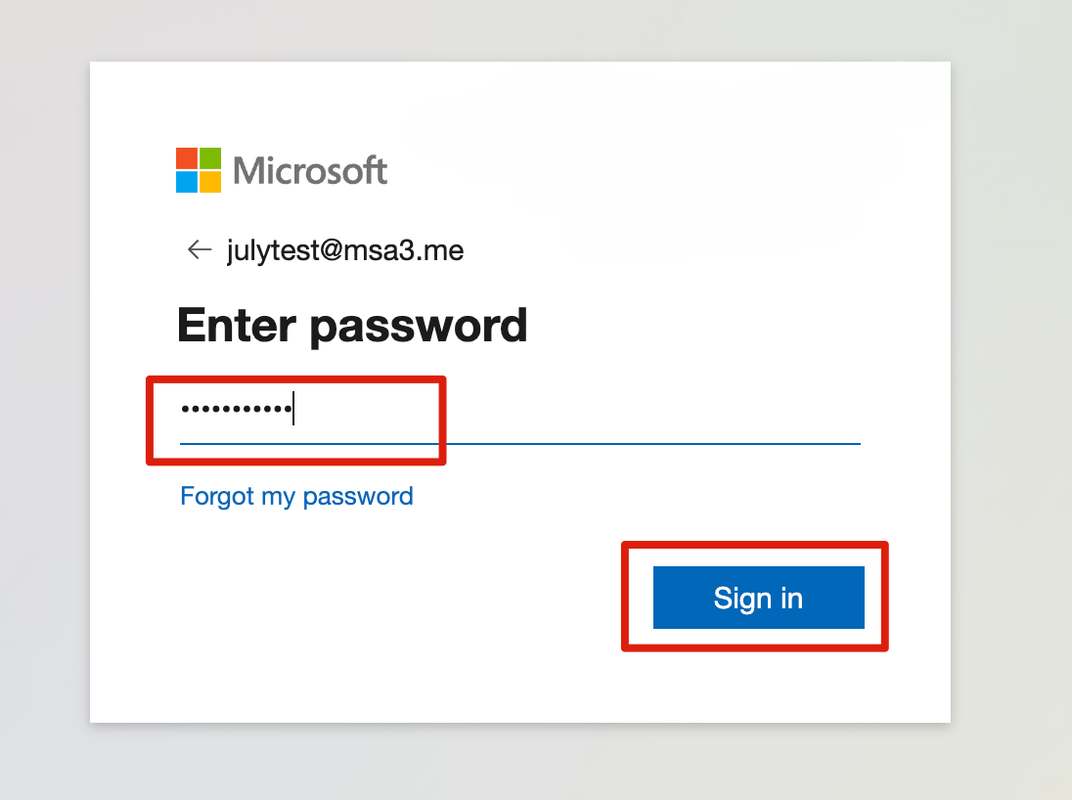
Sign In with Your Credentials
Use the Microsoft 365 login credentials provided with your purchase
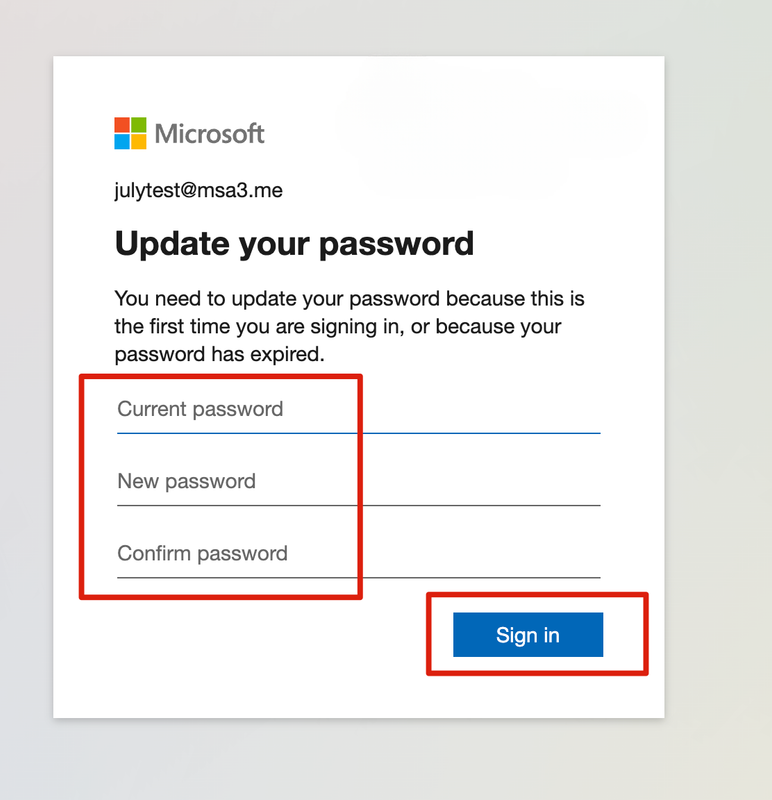
Update Your Password
On first login, you'll be required to change your password for security
TIP: Make sure to remember this new password and save it somewhere safe!
Set Up Security Info
Required step for account security - link your phone or email
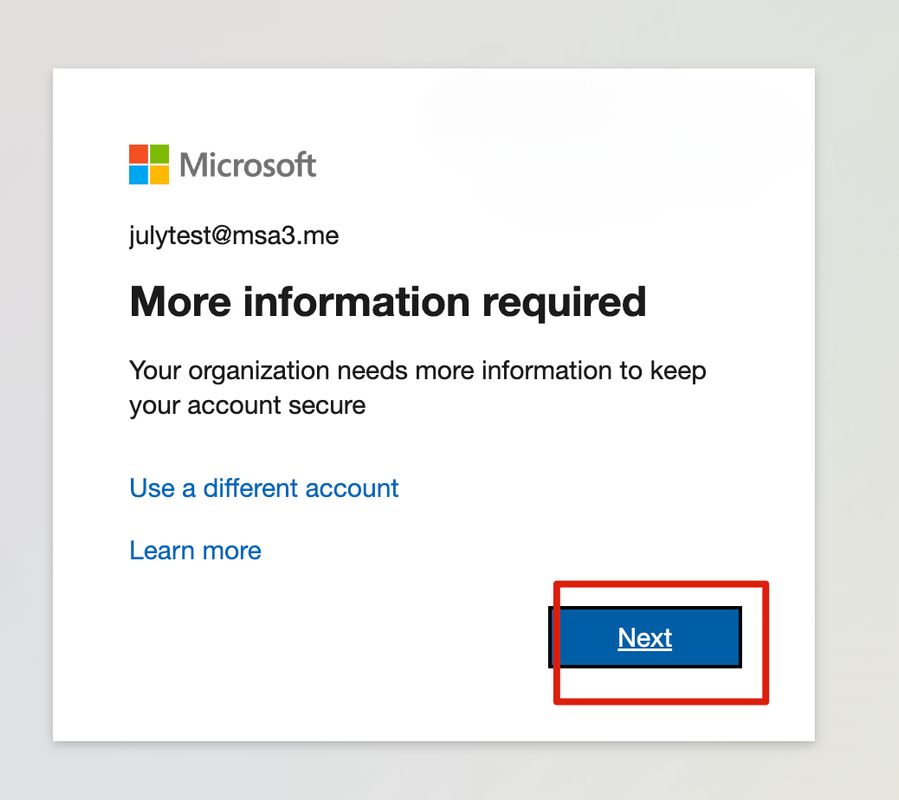
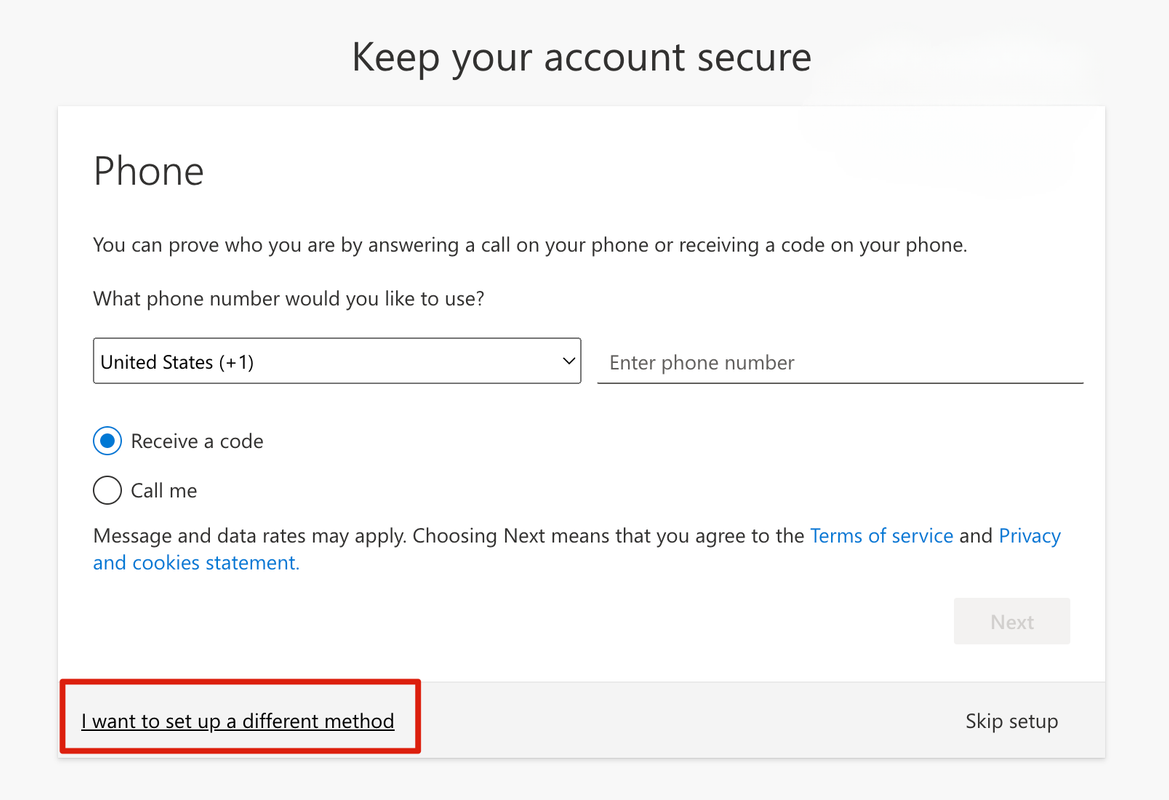
You can update security info anytime at: mysignins.microsoft.com/security-info
Install Microsoft 365 Apps
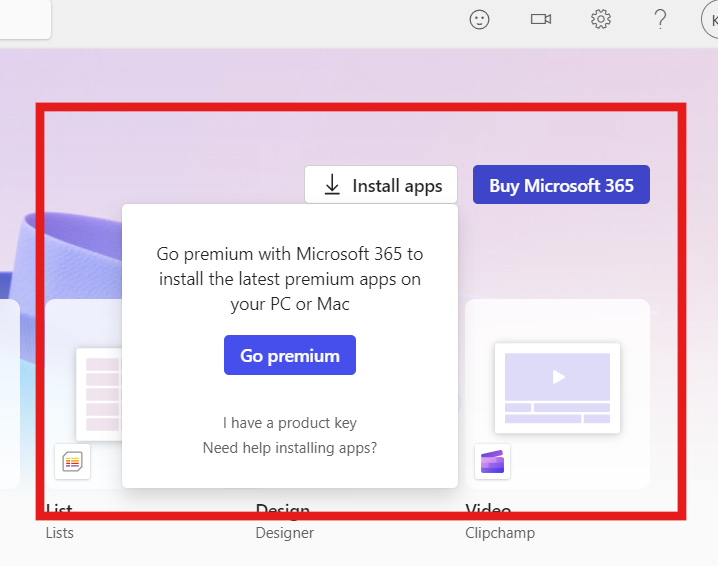
Click "Install apps" → "Microsoft 365 apps"
OR visit m365.cloud.microsoft/apps/ directly after logging in with the generated account.
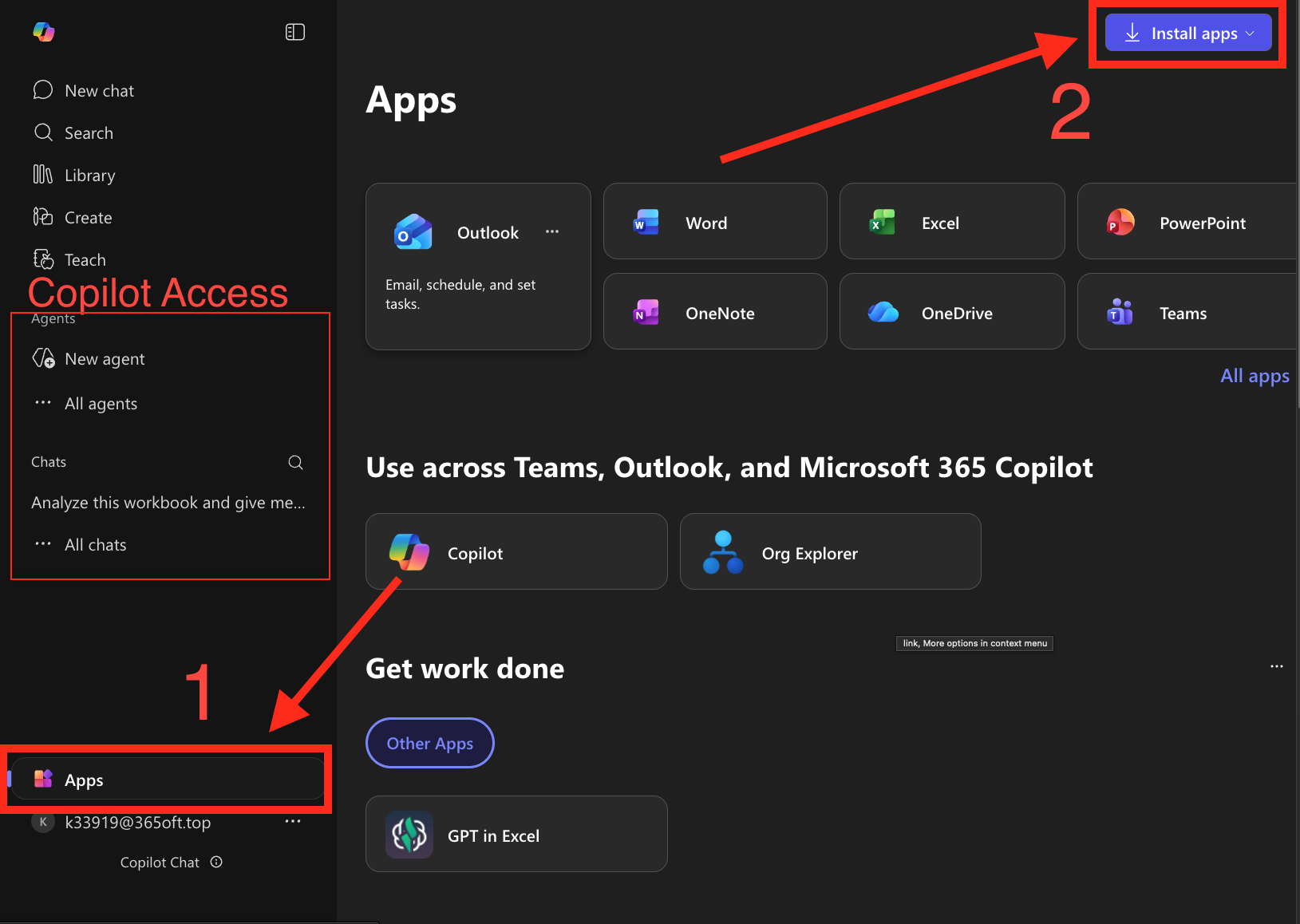
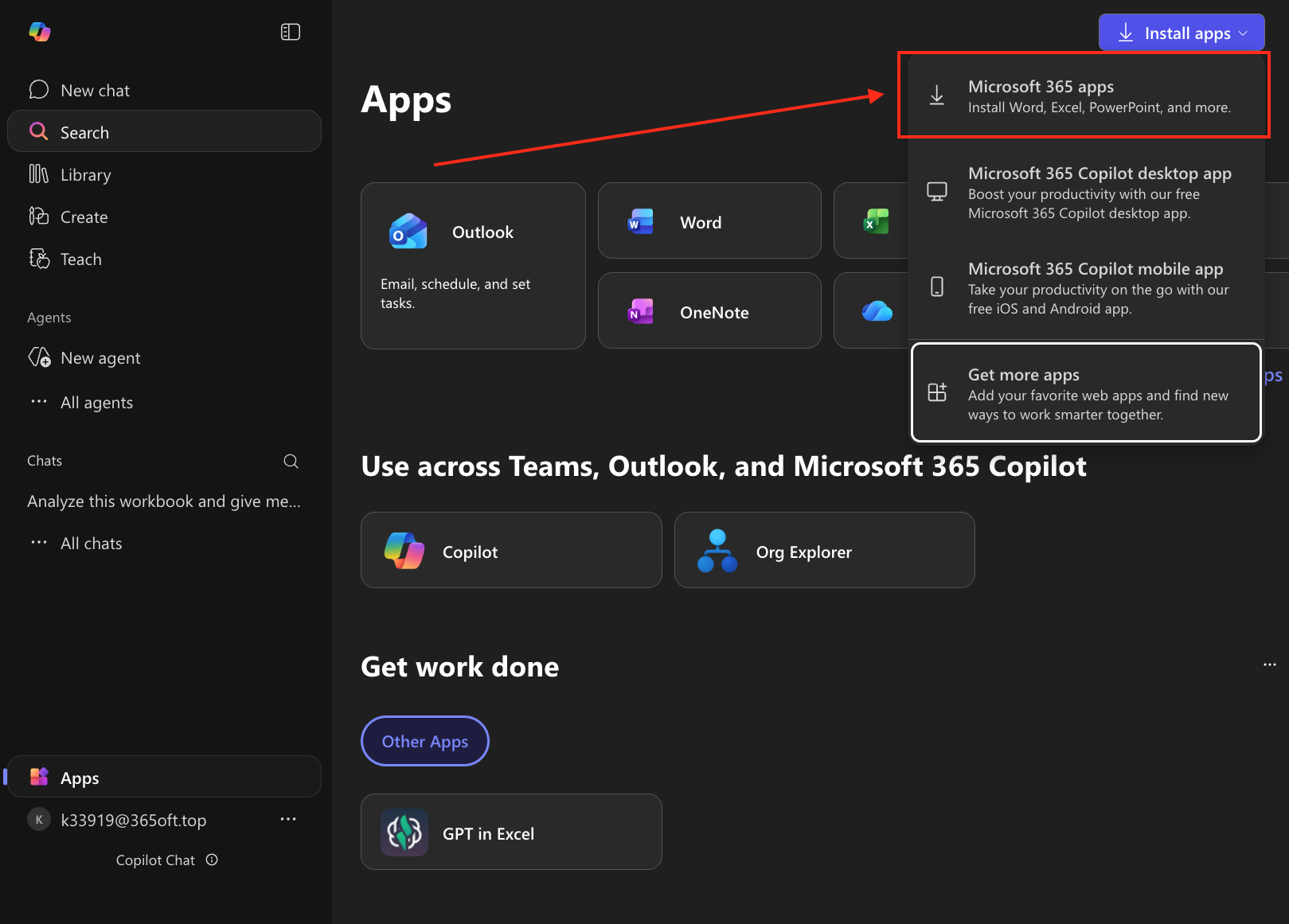
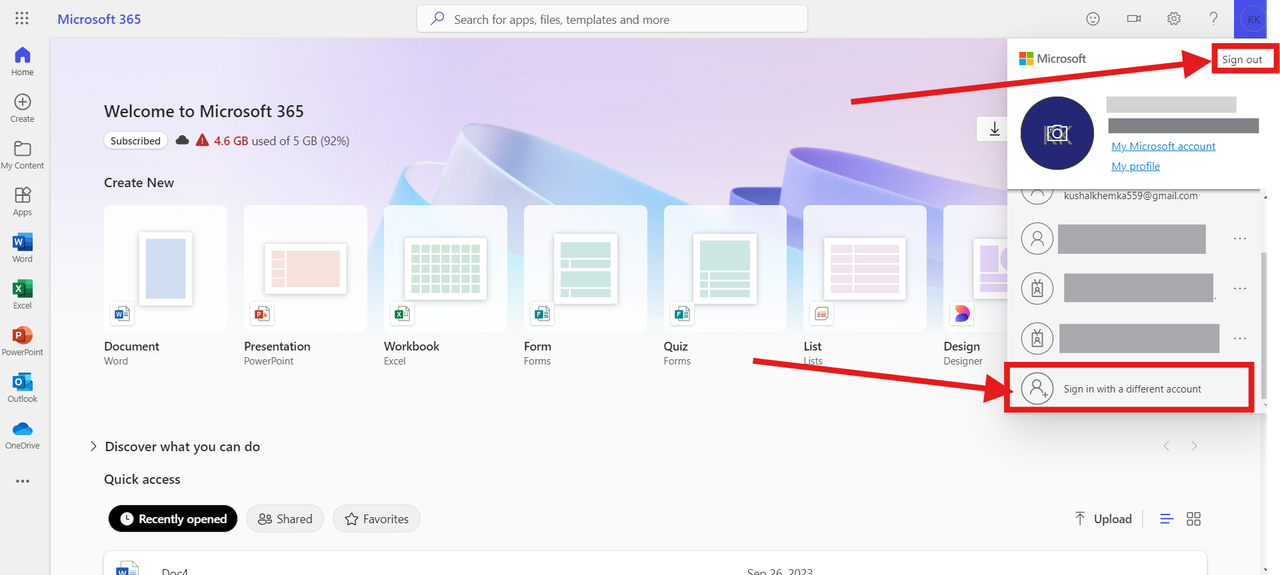
If you see "Buy Microsoft 365" or "Go Premium" instead:
Click on Profile Icon (top-right) → Switch account → Sign in with a different account (use the generated 365 credentials)
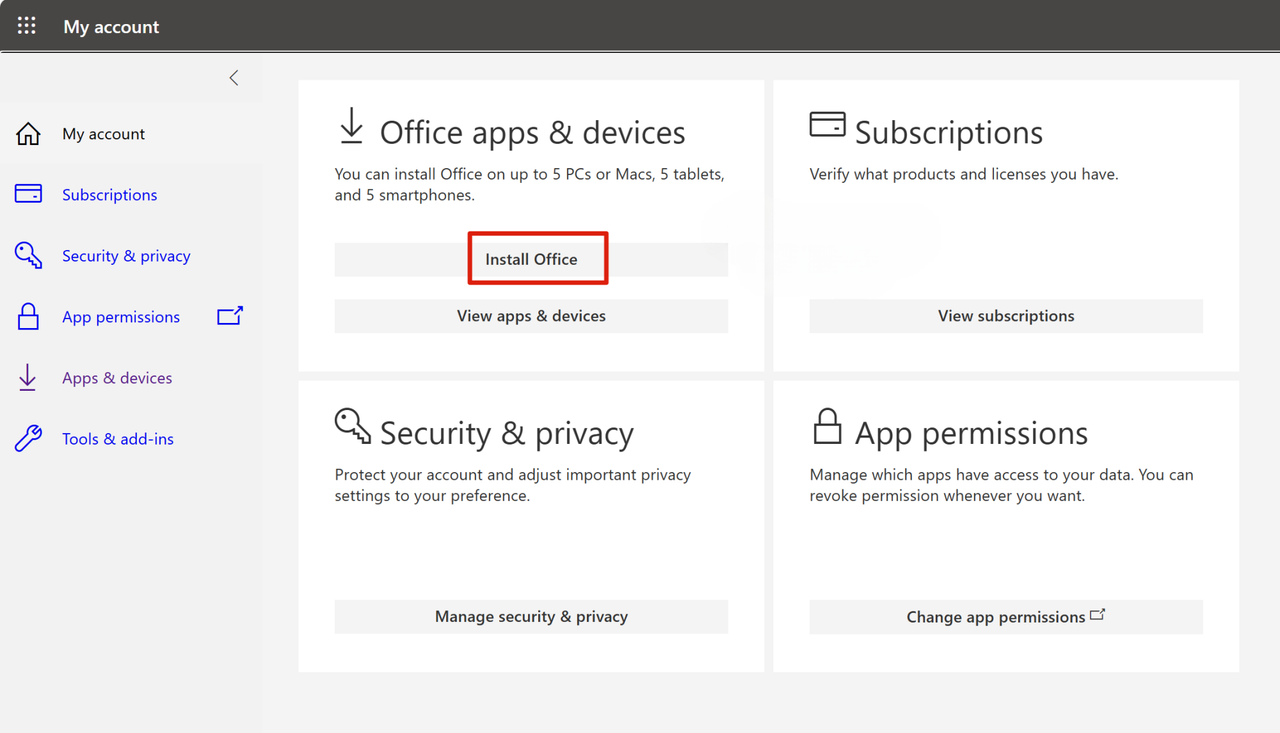
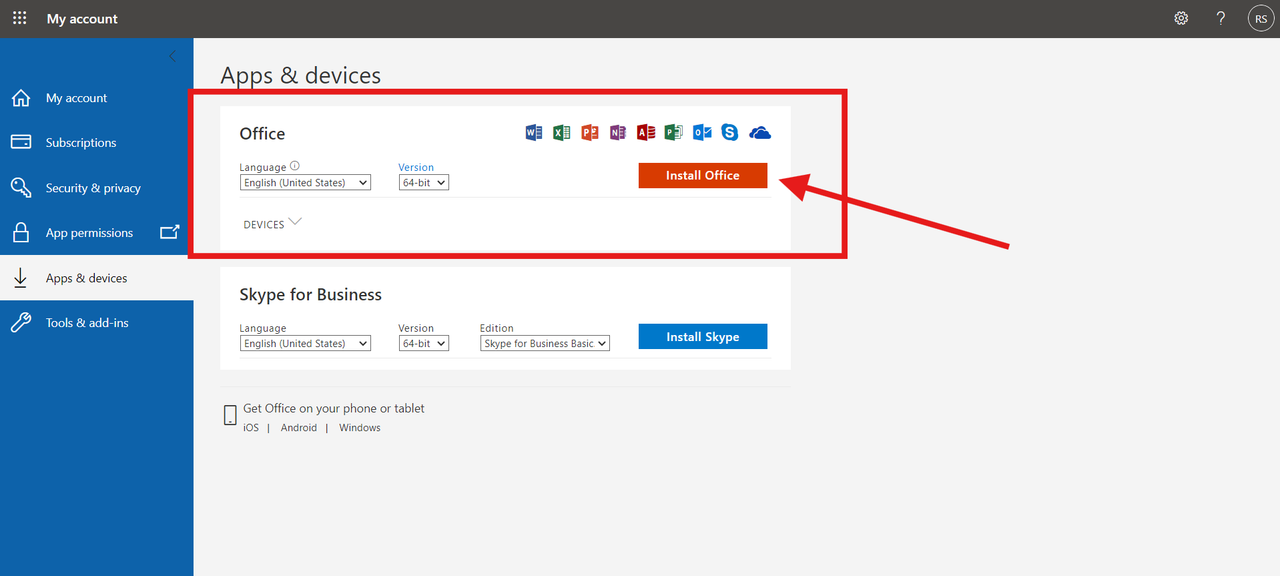
Click Install Office
After clicking Install 365 apps, click "Install Office" in the next window
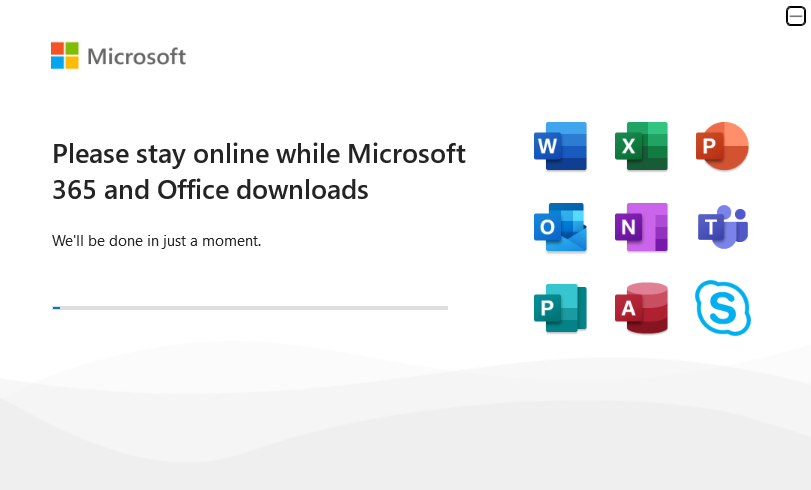
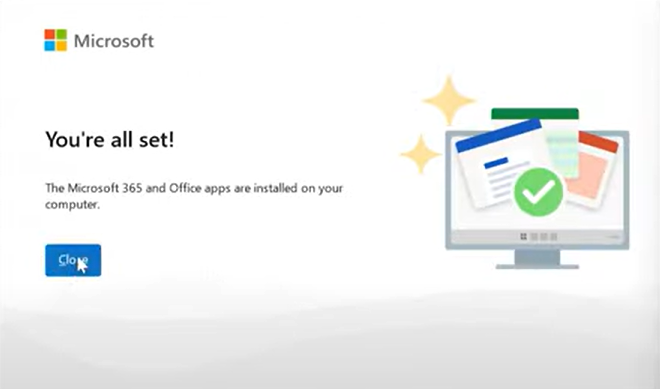
Run OfficeSetup.exe
Run the downloaded file and click "Yes" when prompted
Sign In to Office App
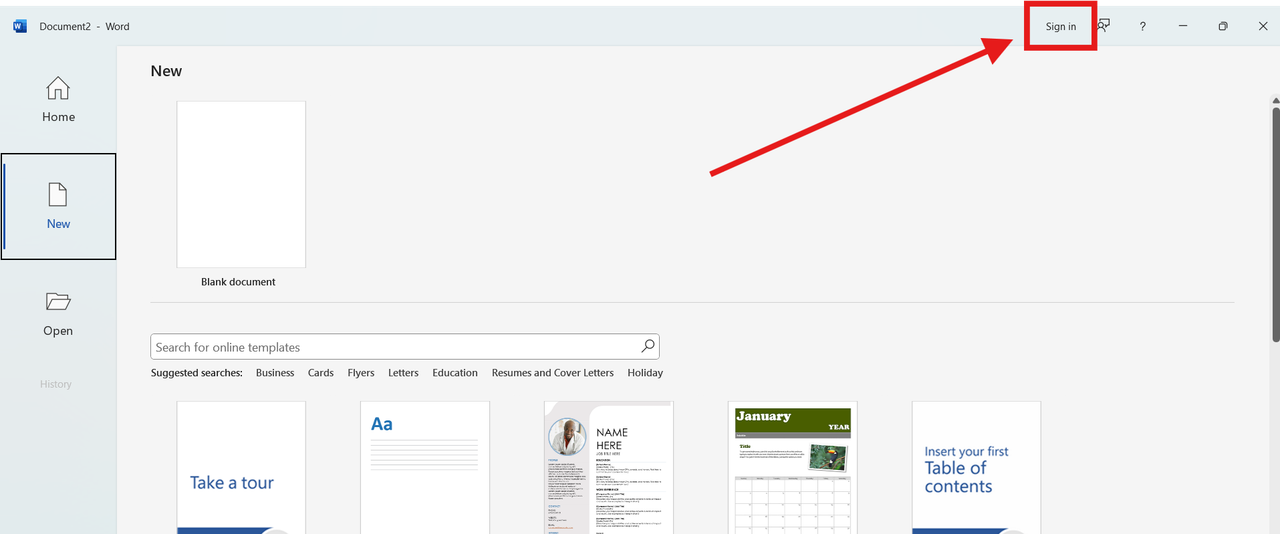
Open any Office app (Word, Excel) and sign in with your 365 account
TIP: You can sign in with multiple accounts to access old data from personal/work accounts while keeping Office activated!
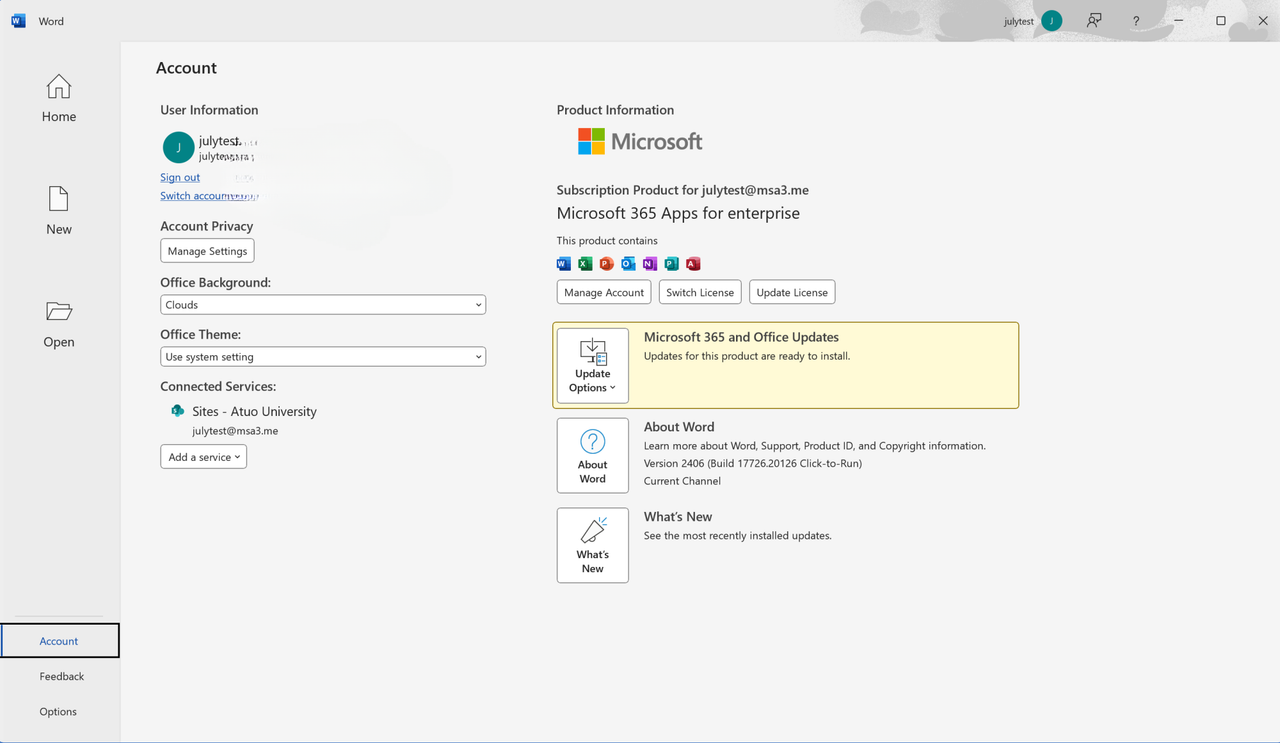
Office 365 Activated!
Your Office 365 is now activated for lifetime use
Customize Your Username
Get a personalized email instead of the default numbered one
You can replace your default numbered email with a custom one like yourname@ms365.pro. This option is available directly on your Activate page.
Go to the Activate Page and enter your Order ID / Secret Code
Complete the Warranty Registration if you haven't already (required to unlock customization)
Look for the "Customize Your Username" section and click "✨ Customize My Username"
Choose your desired username, fill in your details, and submit the request
Your new custom username will be ready within 24-48 hours and you'll be notified via email
Access OneDrive Storage
Download the OneDrive app or visit onedrive.live.com. Sign in with your generated 365 account to enjoy cloud storage.
Works on Windows & Mac
The procedure is similar for both macOS and Windows. You can activate up to 5 devices of different OS in a similar way.
If you see error CAAC000E
Simply click "Continue" to proceed. This error can be safely ignored.
Register for FREE Warranty
Get lifetime technical support & easy reinstallation assistance
If Office 365 is Pre-installed
Open any Office app (Word, Excel, etc.)
On Windows: Click File Menu → Account → Activate Product
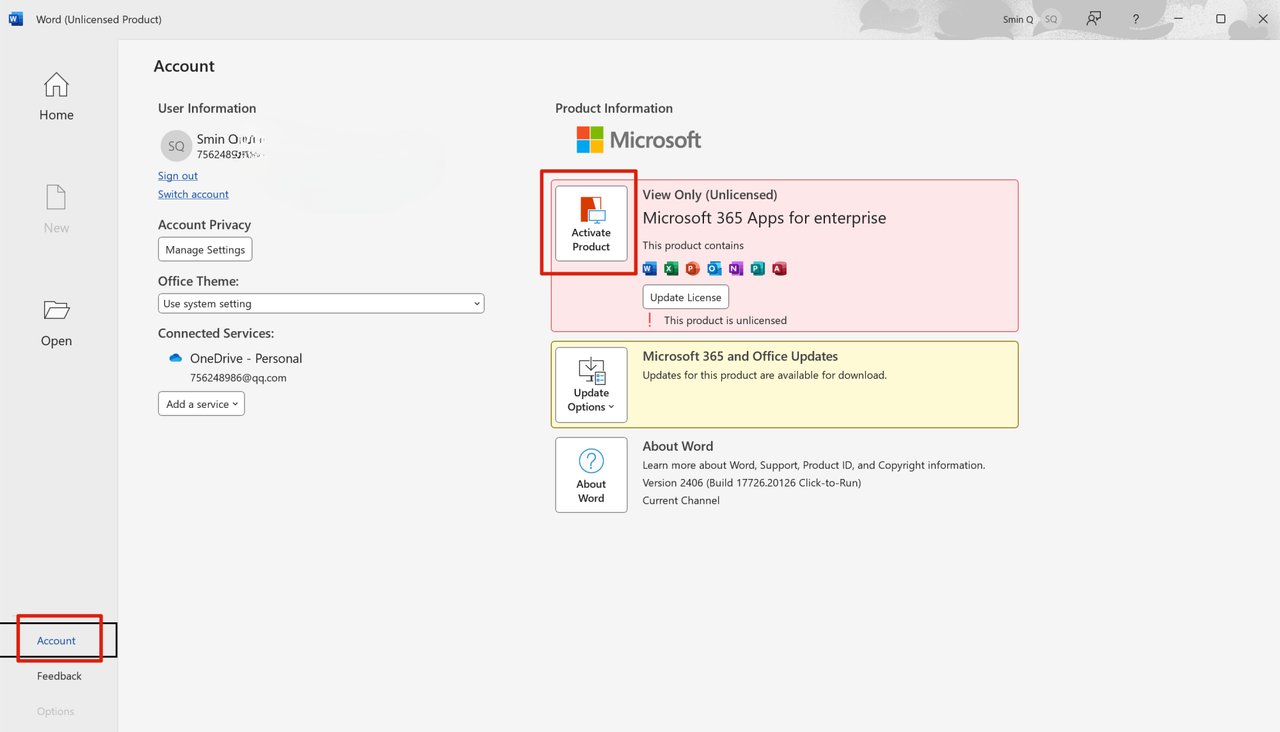
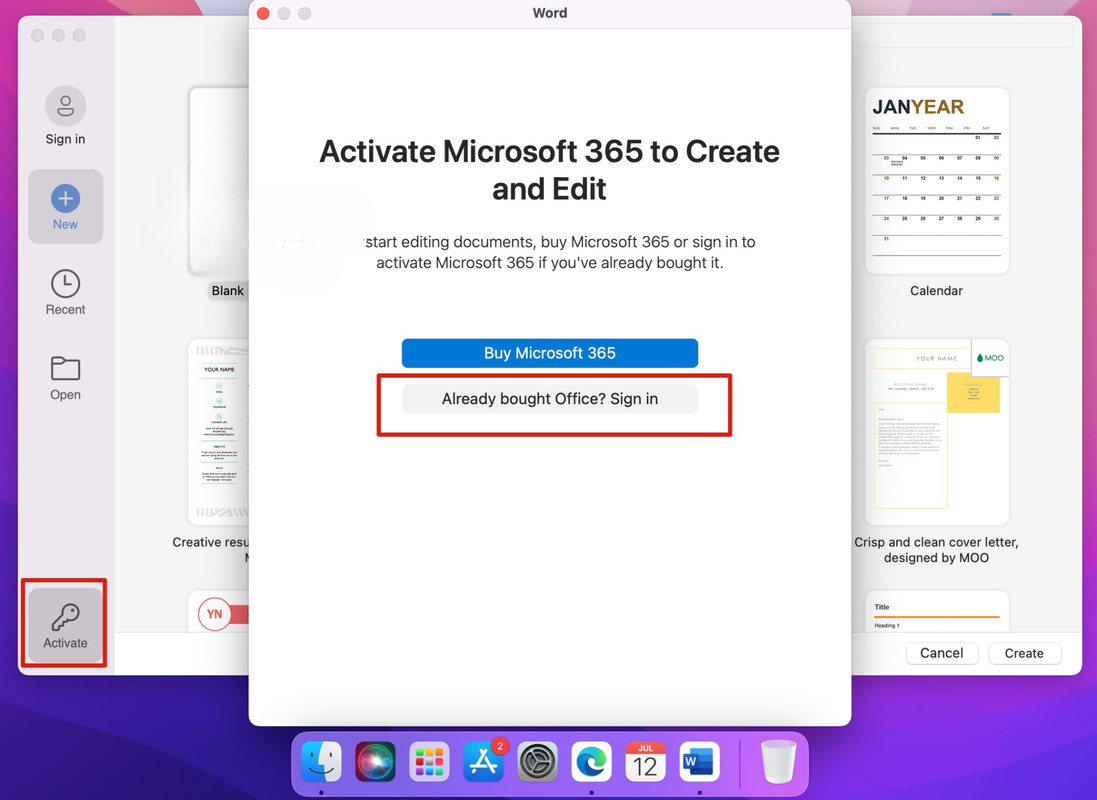
On Mac: Click "Activate" (key icon at bottom left) → "Already bought Office? Sign in"
Sign in using your purchased credentials. If logged in with another account, click "Use a different account"
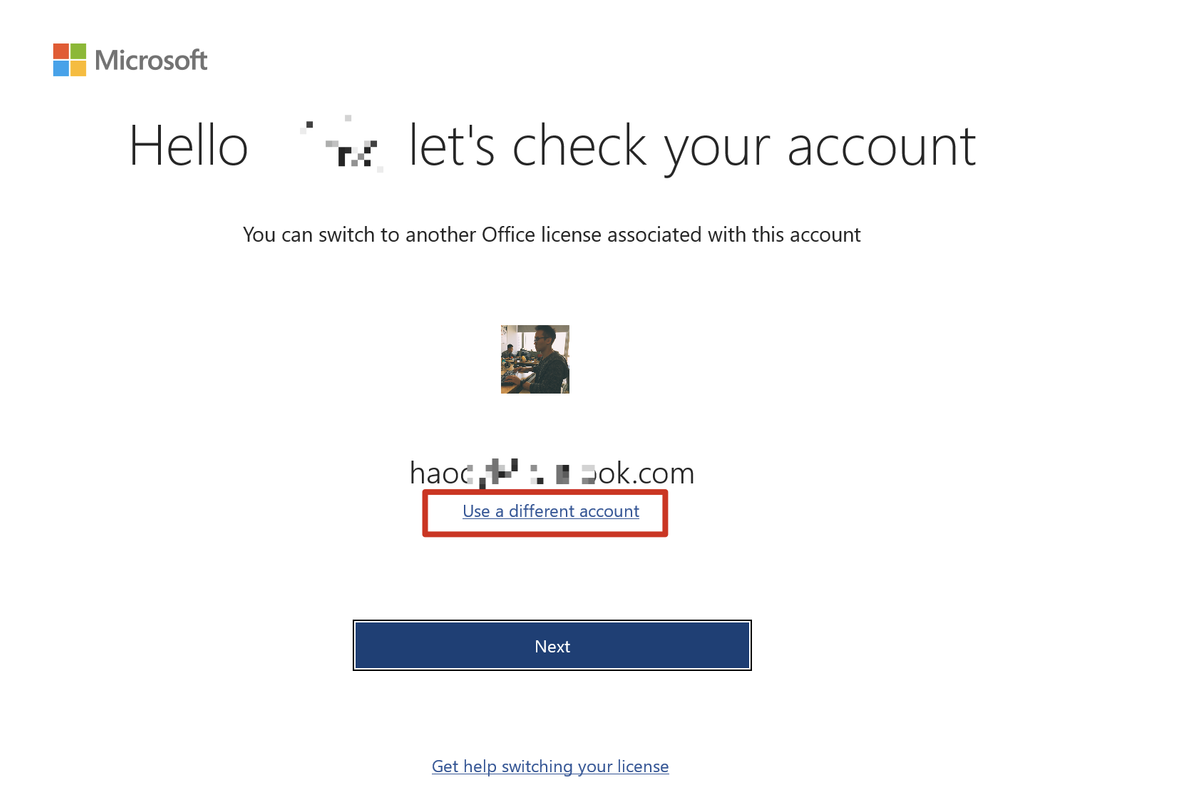
After logging in, the activation is complete!
Mobile Device Activation
Android Phone/Tablet
Download from Play Store and login with your 365 account:
iPad / iOS
Download from App Store and login with your 365 account: