
WINDOWS 10/11 PROFESSIONAL
Follow these instructions to install and activate Windows 10/11 Professional.
Windows 11 Professional
Enter Product Key During Installation
You may be prompted to enter the product key during installation
Activate After Installation
If Windows 11 is already installed: Start → Settings → System → Activation → Update product key → Change product key → Click Change
Enter Product Key
Enter the product key to activate Windows 11 Professional
Windows 10 Professional
Enter Product Key During Installation
You may be prompted to enter the product key during installation
Activate After Installation
If Windows 10 is already installed: Start → Settings → Update & Security → Activation → Change product key
Enter Product Key
Enter the product key to activate Windows 10 Professional
Windows Activated!
Your Windows Professional is now activated!
Upgrading from Home Edition?
If you have Windows Home and need to upgrade to Pro, use this key first:
P6782-D2NFT-8WMXK-HC8CP-Q3WXGAfter upgrading, change the key again and enter your purchased license key.
Common Troubleshooting Steps
If you encounter activation errors, follow these steps.
Fix Windows Services:
- Search "Services" on Search Bar → Click on Services
- Find: Windows License Manager Service, Windows Update, Windows Event Log, Windows Event Collector, Windows Time
- All must be in Running status with Automatic startup type
- If not, right-click → Properties → Set to Automatic → Start → Apply
Error 0xc004f050:
This is due to Windows 'N' edition or previous organization activation. You need to perform a fresh Windows reinstallation.
Error 0xc004c008 - Phone Activation:
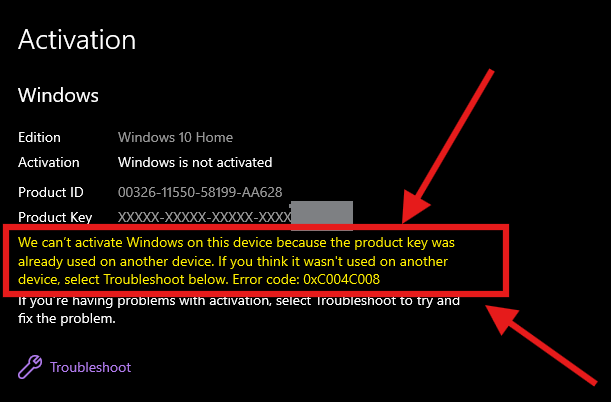

This method can also be used for OFFLINE activation of Windows:
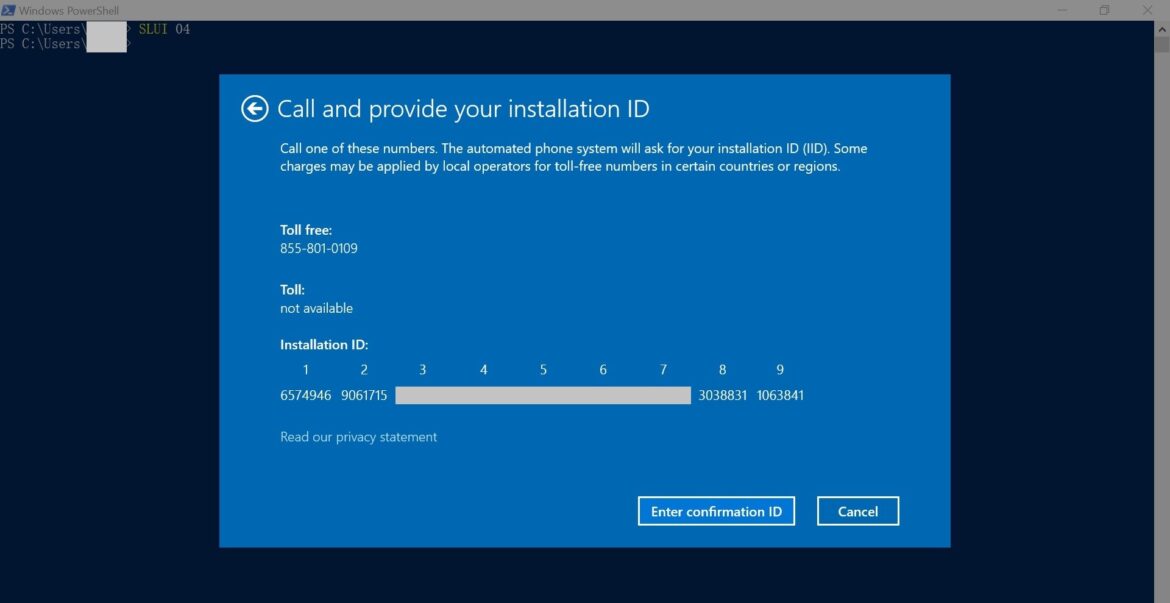
- Press Windows + R → Type
slui 4→ Enter - Select your country (e.g., India) → Click Next
- Note your 63-digit Installation ID
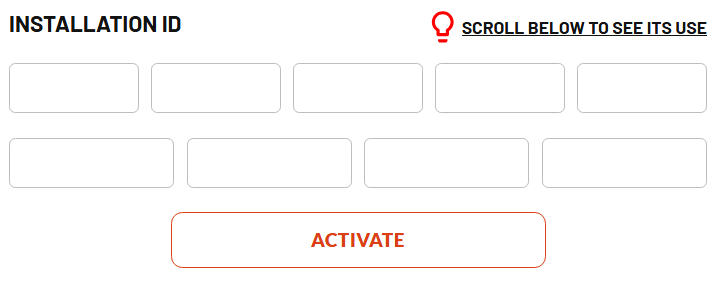
- Enter Installation ID on the GetCID activation page
- Wait 2-3 minutes for Confirmation ID
- Enter Confirmation ID → Windows Activated!
Register for FREE Warranty
Get lifetime technical support & remote desktop assistance