
WINDOWS 11 PRO + OFFICE 2024
Complete installation guide for Windows 11 Professional and Office 2024 LTSC Professional Plus.
Part 1: Windows 11 Professional
Install and activate Windows 11 Pro first
Activate Windows 11 Pro
Go to: Start → Settings → System → Activation → Change product key
Enter Windows Product Key
Enter the Windows 11 Pro product key from your order
Windows 11 Pro is now activated!
Upgrading from Home Edition?
If you have Windows Home and need to upgrade to Pro, use this key first:
P6782-D2NFT-8WMXK-HC8CP-Q3WXGAfter upgrading, change the key again and enter your purchased license key.
Troubleshooting Tips
If you face activation errors, ensure Windows Update, Windows License Manager, and Windows Time services are running. Press Win+R → type slui 4 for phone activation if needed.
Part 2: Office 2024 LTSC Professional Plus
Install and activate Office 2024 after Windows is ready
Before You Begin
You must uninstall all old Office versions first.
Uninstall Previous Office Versions
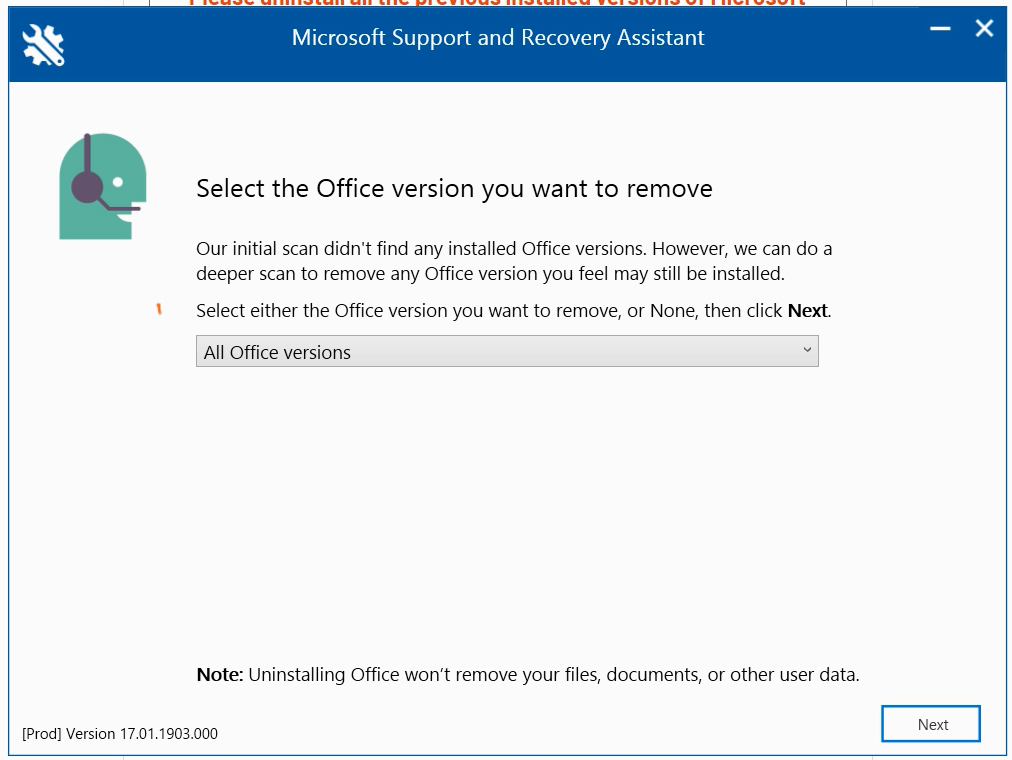
Download and run the official Microsoft Office removal tool
Run the Removal Tool
Select "All Office Version" and wait 30-45 minutes for completion

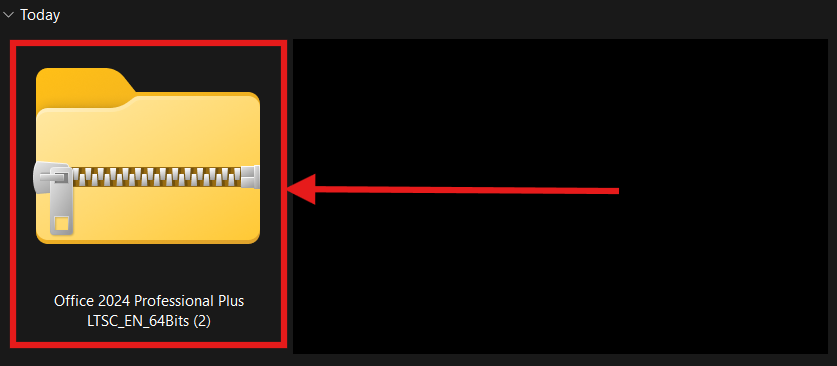
Open the Downloaded ZIP File
Double-click on the "Office 2024 Professional Plus LTSC_EN_64Bits" zip file
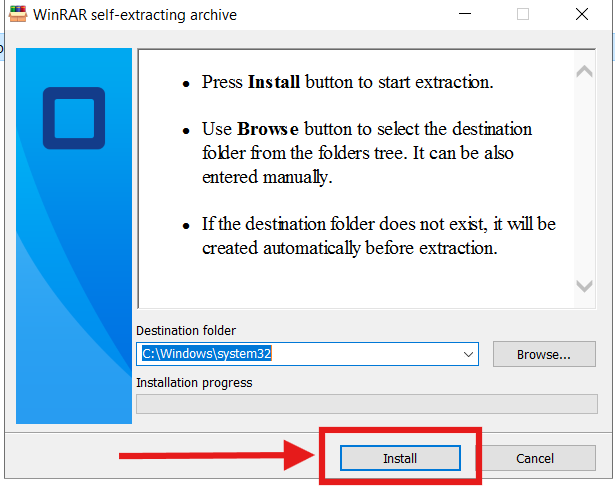
Run the Application
Double-click on the application file to run it

Click Next on Self-Extracting ZIP
Click "Next" on the self-extracting dialog, then "Yes" when prompted
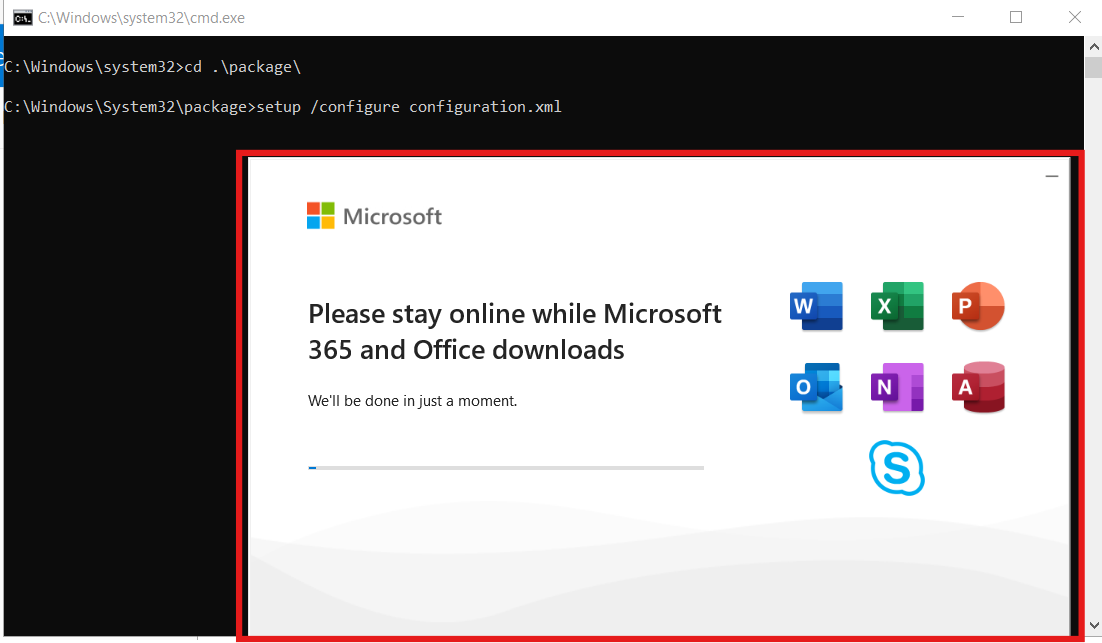
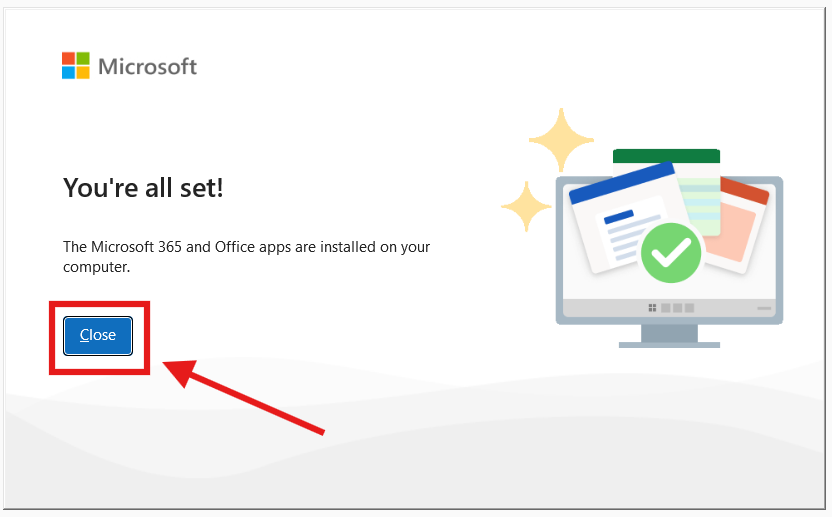
Wait for Installation
Stay online while it downloads and installs (approx. 15-30 mins)
Open Office Application
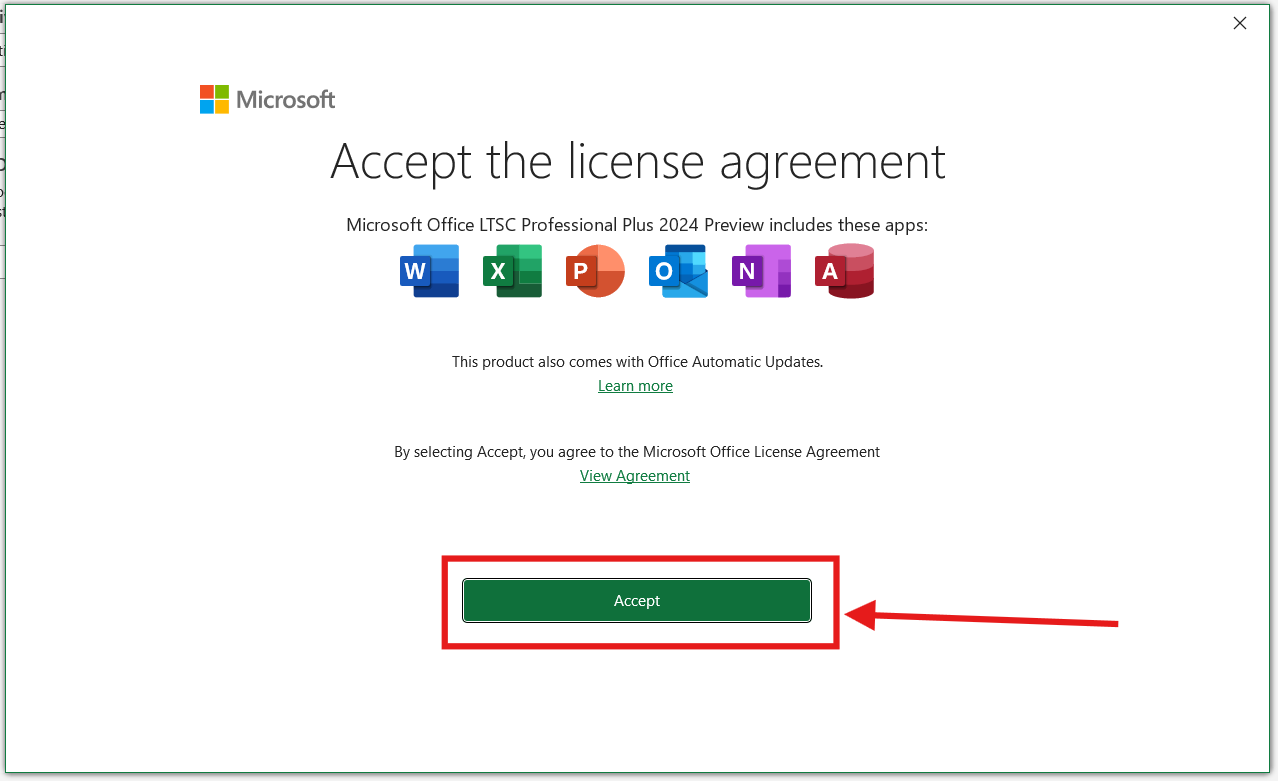
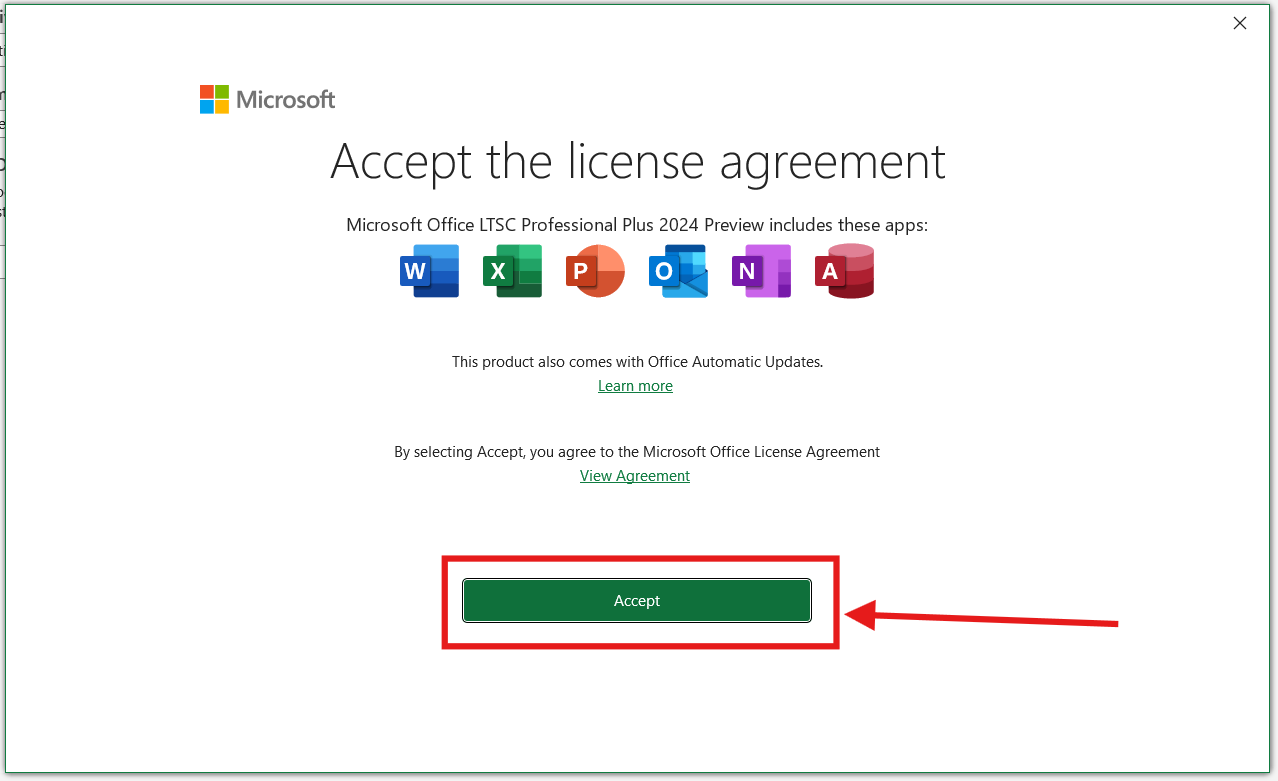
Launch Word or Excel and accept the License Agreement
Navigate to Account Settings
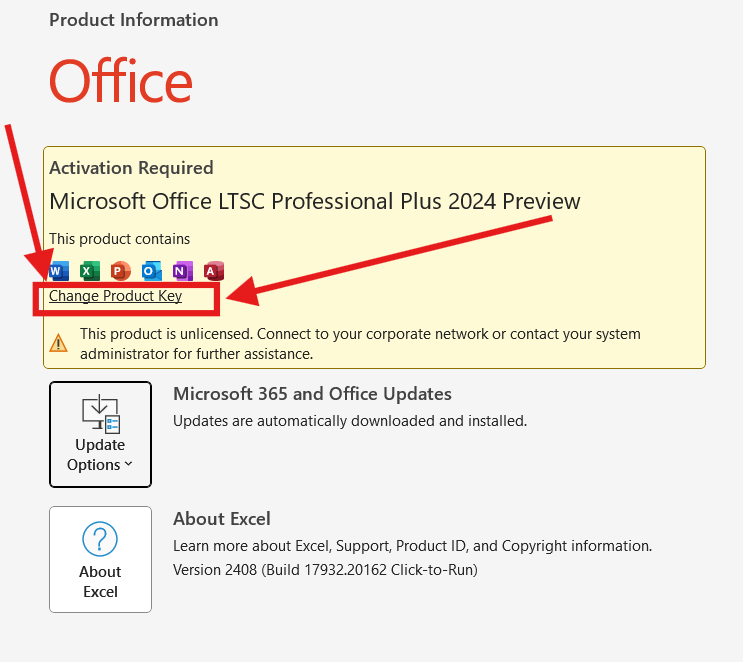
Click File Menu → Accounts (bottom left corner)
Enter Your License Key
Click "Change Product Key" and enter your 25-digit license key
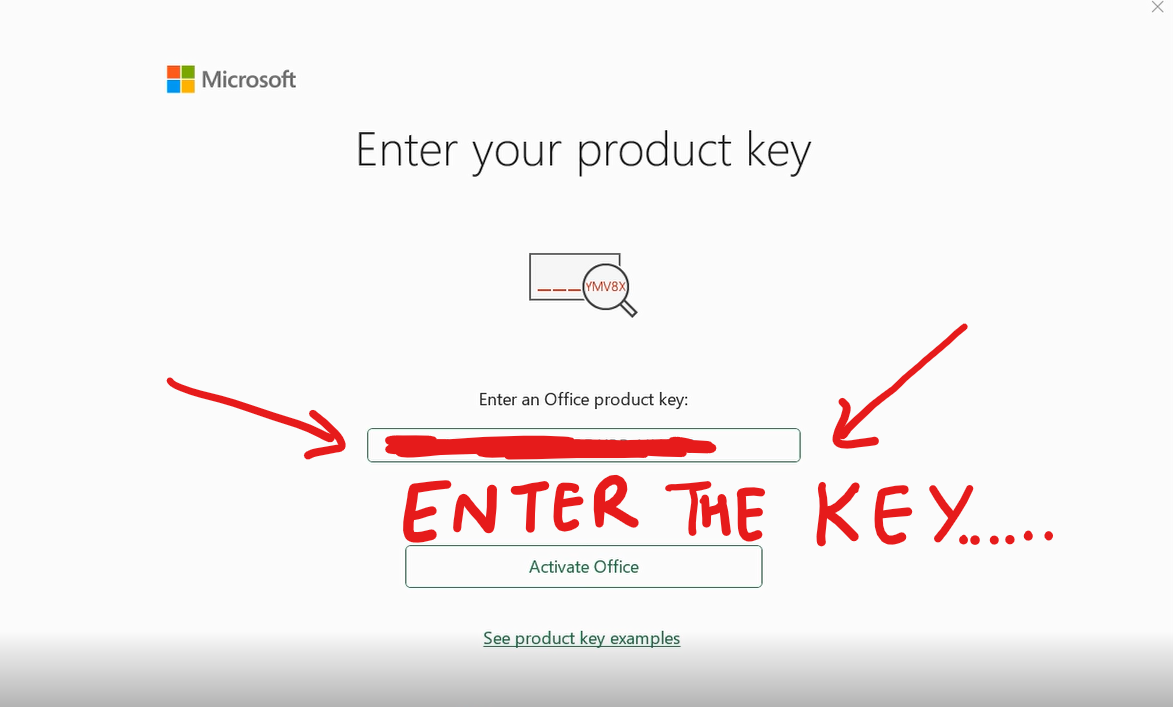
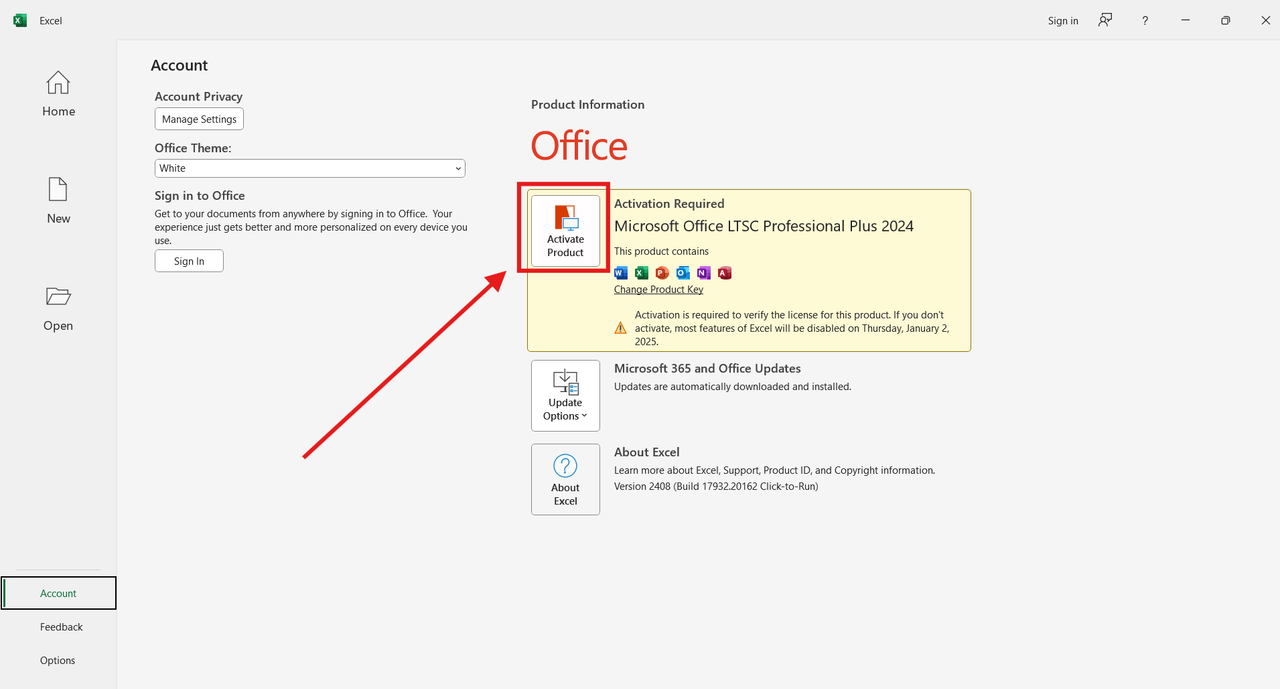
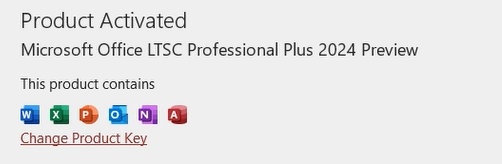
Click "Activate Office"
Your Office 2024 LTSC will be activated for lifetime!
Troubleshooting: Phone Activation
If you encounter an activation error, follow these steps to activate via telephone.
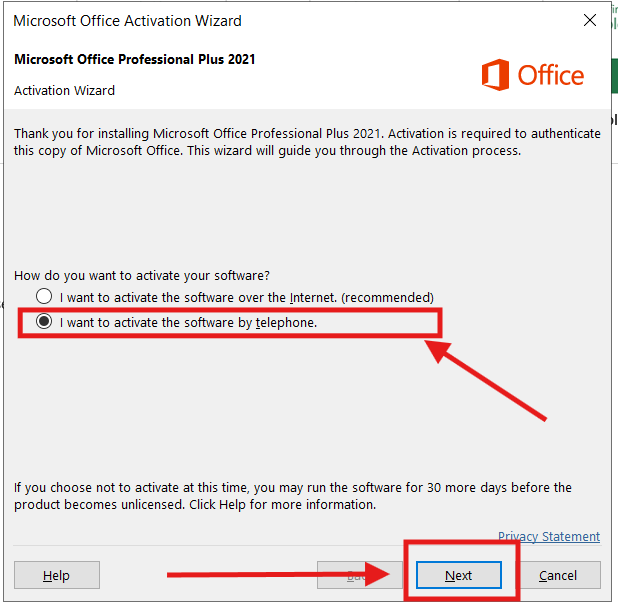
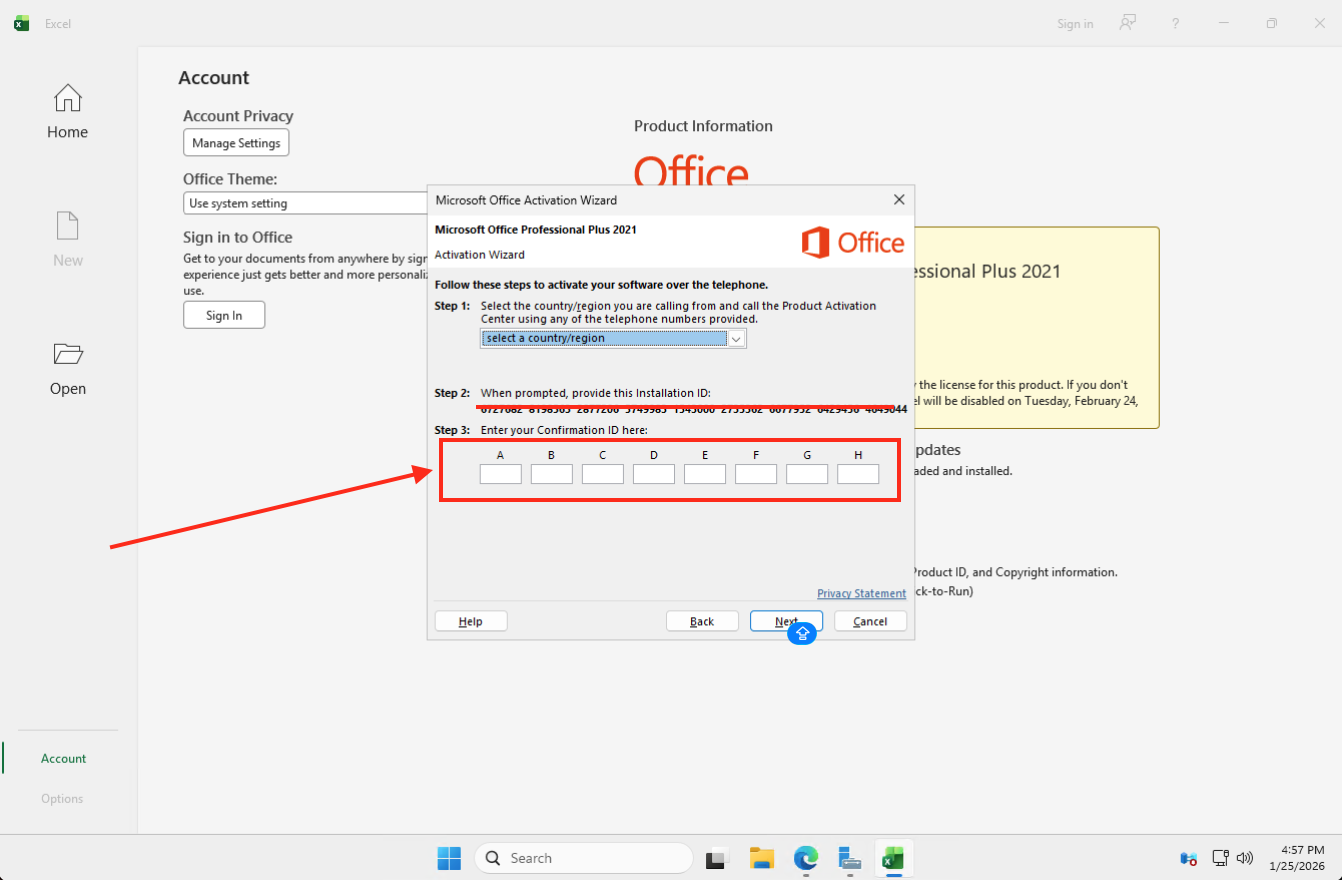
If the Activation Wizard appears:
Select: "I want to activate the software by telephone" and click Next
- Enter your 63-digit Installation ID on the website
- Click ACTIVATE and wait 2-3 minutes
- A Confirmation ID will be generated
Enter the Confirmation ID in the Office app (blocks A to H) to finish activation
Your Office 2024 is now activated for lifetime!
Combo Pack Complete!
Both Windows 11 Pro and Office 2024 LTSC are now activated.
Register for FREE Warranty
Get lifetime technical support & remote desktop assistance via AnyDesk